


The Beginner's Guide to AI Automation (2026)


You've probably heard the phrase "AI automation" about fifty times in the last month. It's in every LinkedIn post, every YouTube thumbnail, every "10 tools that will change your life" article. And if you're anything like most people, you've nodded along without actually knowing what it means.
You're not behind. Most people using that phrase couldn't explain it clearly either.
Here's why it's suddenly everywhere: for years, automation existed, but it was clunky and limited — basically a set of rigid "if this happens, do that" rules. AI changed that. Now automation tools can understand messy, real-world information (a rambling email, a photo, a customer message) instead of only reacting to a fixed trigger. That shift is a big deal, and it's why the term is having a moment.
Here's the reassurance you actually need: you do not need to know how to code. Not a little, not "just the basics" — none. Every tool in this guide is built for people who have never written a line of code in their life. If you can drag a box on a screen or type a sentence, you can build a basic automation.
This guide will walk you through what AI automation actually is, how it's different from plain automation and plain AI, the best beginner tools, real everyday examples, common mistakes, and a full walkthrough of building your very first automation. Grab a coffee — let's get into it.
Table of Contents
1. What Is AI Automation?
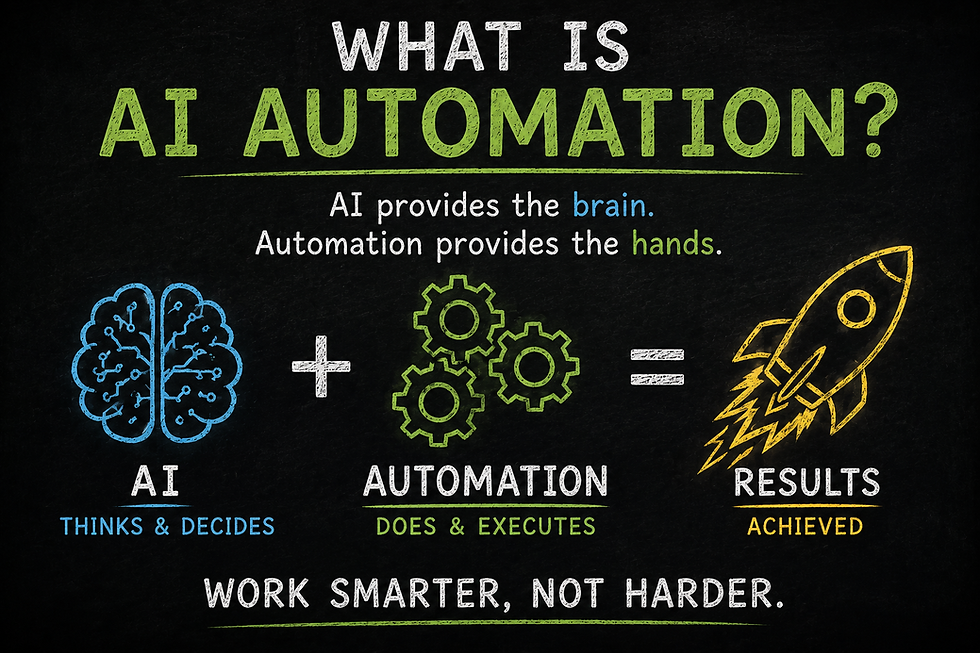
Let's strip away the buzzword and get to the plain-English version.
Automation means telling a computer to do a repetitive task for you, automatically, without you clicking through every step yourself. Think of a coffee maker on a timer — you set it once, and it repeats the same action every morning without you doing anything.
AI means software that can understand and respond to information the way a person might — reading a message, recognizing what's in a photo, summarizing a long document, deciding what something means.
AI automation is what happens when you combine the two: a system that not only repeats a task automatically, but can also understand messy, real-world information well enough to make small decisions along the way.
An everyday example

Imagine you get an email every time someone submits a form on your website. Here's the difference between the three:
Plain automation: "When a new form email arrives, forward it to my assistant." It does exactly this, every time, with zero flexibility. If the email format changes even slightly, it might break.
AI: You could paste the email into ChatGPT and ask, "Summarize this and tell me what the person wants." Useful, but you're still doing it manually, one email at a time.
AI automation: The system automatically detects the new email, uses AI to read and summarize what the person is asking for, decides which category it falls into, and routes it to the right person — all without you touching it.
Quick Takeaway: Automation handles the repetition. AI handles the understanding. AI automation combines both, so the system can handle messy, real-world tasks on its own, not just rigid, identical ones.
This is why AI automation feels so different from the automation of five or ten years ago. Old-school automation could only follow very literal, exact instructions. Today's tools can handle a lot more nuance — messy inboxes, unpredictable customer messages, documents that don't follow the same format every time.
2. Automation vs AI vs AI Automation

This is the part that confuses almost everyone, so let's slow down here. These three ideas exist on a spectrum, not as separate, unrelated categories.
Traditional automation

This is the oldest and simplest form. Rigid "if this happens, then do that" rules. No understanding, no flexibility — just literal, exact triggers and actions. A classic example: "If I get an email with the word 'invoice' in the subject line, save the attachment to a folder."
The problem? If the subject line says "Invoice #4471" one time and "Your Bill From Us" the next, traditional automation might miss it entirely, because it's just matching exact text, not meaning.
AI-assisted automation

This is the middle ground, and it's where most beginner-friendly tools sit today. The automation still runs on a set of steps, but somewhere in that sequence, AI is doing something that requires actual understanding — reading a message and figuring out its intent, summarizing a document, deciding which of five categories something belongs in.
Using the invoice example: instead of matching an exact subject line, AI-assisted automation can read the content of the email and recognize "oh, this is an invoice" even if the wording is completely different every time.
Fully agentic workflows

This is the newest and most advanced layer, and it's what a lot of the recent hype is actually about. In a fully agentic workflow, the AI isn't just doing one understanding-based step inside a fixed sequence — it's making a series of decisions about what to do next, sometimes across multiple tools, with much less rigid structure.
For a beginner, this layer is genuinely more complex, more expensive to run well, and honestly not necessary for 90% of everyday tasks. It's worth knowing it exists, but you shouldn't feel behind if you're not using it yet. Most people get enormous value from AI-assisted automation alone.
Comparison table
Traditional Automation | AI-Assisted Automation | Fully Agentic Workflows | |
How it decides what to do | Fixed, exact rules | AI understands content, then follows set steps | AI makes ongoing decisions across steps |
Handles messy/unpredictable input | Poorly | Well | Very well |
Beginner difficulty | Easy | Easy to Moderate | Hard |
Best for | Simple, predictable repeated tasks | Everyday tasks involving text, documents, or messages | Complex, multi-step business processes |
Example tool | Basic IFTTT applets | Zapier + AI steps, Make | n8n with AI agents, Zapier Agents |
Pro Tip: As a beginner, aim to live in the "AI-assisted automation" column for at least your first few months. It's flexible enough to be genuinely useful, and simple enough that you won't get overwhelmed or lost troubleshooting something too complicated.
3. Everyday Examples

Sometimes the clearest way to understand a concept is to see it in action. Here's what AI automation actually looks like day to day:
Automatically summarize emails — Long email threads get condensed into a two-line summary the moment they arrive.
Organize files — New documents get automatically renamed and sorted into the right folder based on their content, not just their file type.
Generate meeting notes — A recorded call gets transcribed and turned into a structured summary with action items, without anyone typing notes.
Create social media posts — A blog post automatically gets turned into three different social captions and scheduled for the week.
Research products — A request like "find the top-rated budget blenders" gets automatically researched and returned as a short comparison, instead of you opening ten tabs.
Plan vacations — Flight and hotel options get pulled together into a single summary based on your dates and budget.
Schedule appointments — A form submission automatically checks your calendar and books an available time slot, then sends a confirmation.
Weekly reports — Data from a spreadsheet or app gets automatically summarized into a plain-English weekly update, sent to your inbox every Monday.
Customer support — Common customer questions get automatically answered based on your FAQ, with only unusual questions routed to a real person.
Invoice creation — A completed project automatically triggers an invoice, pre-filled with the correct details, ready to send.
None of these require you to write code. They require setting up a sequence once, and letting it run on its own after that.
4. The Best Beginner Automation Tools

There's no single "best" tool — it genuinely depends on your comfort level, budget, and what you're trying to automate. Here's an honest look at the major players.
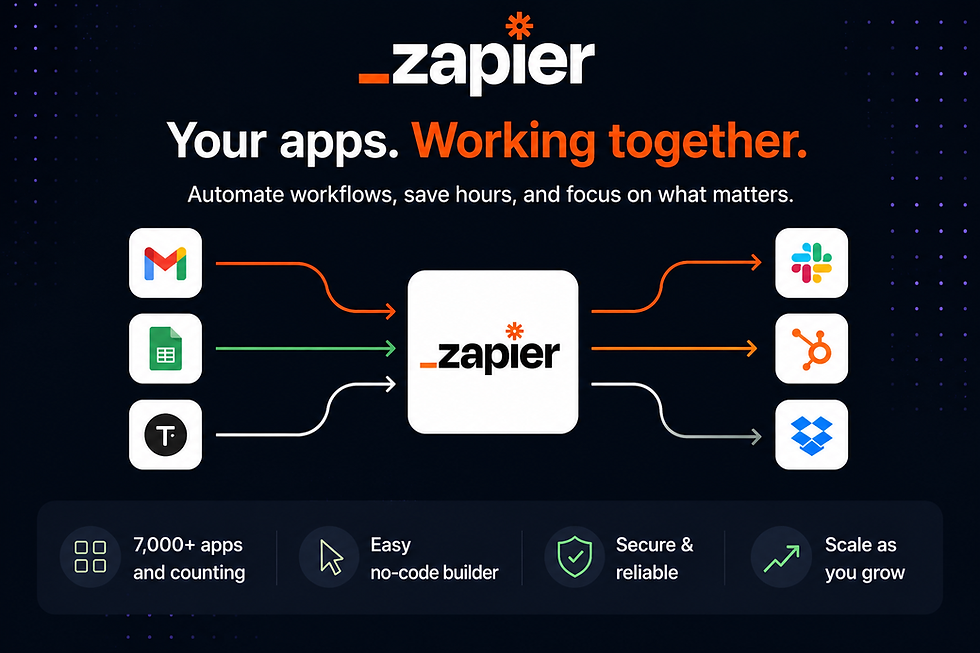
Who it's for: Complete beginners and non-technical small business owners
Difficulty: Very easy
Pricing: Free plan available; paid plans typically start around $20/month for regular use, scaling up based on how many tasks (individual automated actions) you run each month
Strengths
The largest library of app connections of any tool on this list, so it can talk to almost any app you already use
The simplest, most guided setup process — genuinely beginner-friendly
Built-in AI steps for summarizing, categorizing, and drafting content inside a workflow
Weaknesses
Pricing is based on "tasks," meaning every single step in a workflow counts — costs can climb faster than expected once you're running several automations regularly
Complex, branching logic is harder to build here than in some competitors

Who it's for: Beginners who are comfortable with a slightly more visual, hands-on setup
Difficulty: Easy to moderate
Pricing: Free plan available; paid plans generally start lower than Zapier for similar usage
Strengths
A visual, drag-and-drop canvas that makes it easier to see your whole workflow at a glance
Generally more cost-efficient than Zapier at higher usage levels
Strong support for more complex, branching logic without needing to be a developer
Weaknesses
Slightly steeper learning curve than Zapier at first, simply because you're looking at a full visual map instead of a guided step-by-step wizard
Smaller app library than Zapier, though still large

Who it's for: People and businesses already using Microsoft 365 (Outlook, Teams, SharePoint)
Difficulty: Moderate
Pricing: Free tier with standard connectors; paid plans typically start around $15/month per user for premium features
Strengths
Deep, native integration with Outlook, Teams, and SharePoint if you're already in that ecosystem
Often already included in certain Microsoft 365 business subscriptions
Capable of more advanced automation, including desktop-level tasks
Weaknesses
Less useful if you're not already using Microsoft's tools
The free tier is limited to standard connectors only — premium services require a paid plan
Interface feels less beginner-friendly than Zapier's guided setup

Who it's for: Beginners who don't mind a bit of a learning curve, or anyone wanting more control without ongoing subscription costs
Difficulty: Moderate to hard
Pricing: Free if self-hosted (you run it on your own server); cloud plans typically start around $20/month
Strengths
Open-source and self-hostable, meaning no per-task fees if you're comfortable managing your own setup
Strong native AI capabilities for building more advanced, AI-driven workflows
Excellent value at high usage volume, since it counts an entire workflow run as a single execution rather than charging per step
Weaknesses
Genuinely the steepest learning curve of the beginner-accessible tools — expect to spend real time learning the interface
Self-hosting requires some technical comfort that true beginners may not have yet

Who it's for: Individuals automating simple personal tasks — not businesses
Difficulty: Very easy
Pricing: Free plan available with a small number of automations; paid Pro plans start at just a few dollars a month
Strengths
The simplest, most beginner-friendly interface of any tool on this list
Great for personal use — smart home devices, social media cross-posting, simple notifications
Very affordable
Weaknesses
Free plan is quite limited (often just a couple of automations)
Not designed for business-scale or complex workflows
Less AI-native than newer tools; best suited for simple, literal triggers
ChatGPT, Claude, and Google Gemini
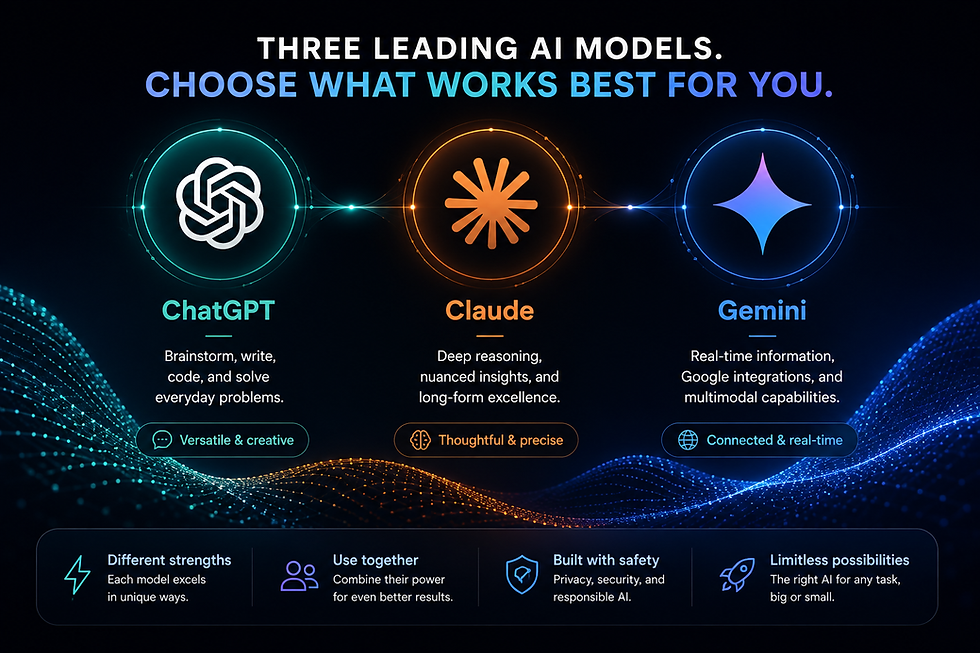
Who they're for: Everyone, especially for the "thinking" part of automation
Difficulty: Very easy
Pricing: Free tiers available; paid plans typically around $20/month
Strengths
These aren't automation platforms in the traditional sense — they don't run on a schedule or watch for triggers on their own — but they're often the "brain" plugged into an automation built in Zapier, Make, or n8n
Excellent at the understanding and writing tasks that make AI automation smarter than old-school automation (summarizing, categorizing, drafting responses)
ChatGPT and Gemini both now offer more automation-adjacent features, like scheduled tasks that run and check in with you on their own
Weaknesses
On their own, without being connected to an automation tool, they still require you to manually start each task
Not a replacement for a true automation platform if you want something to run entirely hands-off
Comparison Table: Quick Reference
Tool | Difficulty | Starting Price | Best For |
Zapier | Very Easy | Free / ~$20/mo | Beginners, huge app library |
Make | Easy–Moderate | Free / lower than Zapier | Visual thinkers, better value at scale |
Power Automate | Moderate | Free / ~$15/user/mo | Microsoft 365 users |
n8n | Moderate–Hard | Free (self-hosted) / ~$20/mo | Cost-conscious, technically curious users |
IFTTT | Very Easy | Free / ~$3–9/mo | Personal, simple automations |
ChatGPT / Claude / Gemini | Very Easy | Free / ~$20/mo | The "thinking" layer inside a workflow |
5. What Can You Actually Automate?
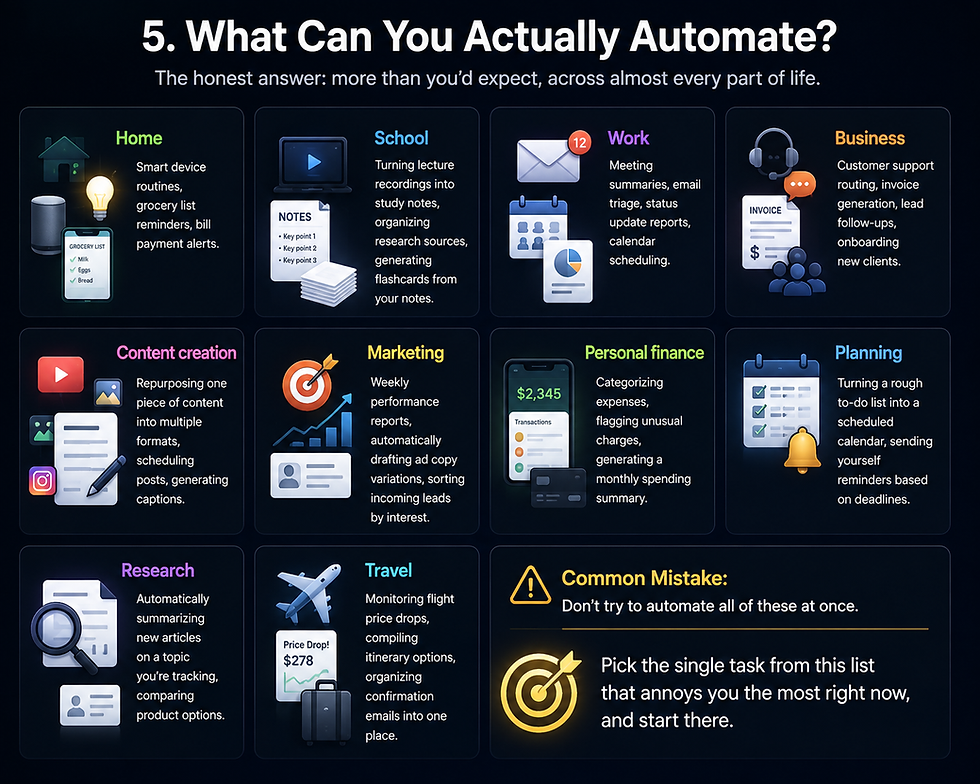
The honest answer: more than you'd expect, across almost every part of life.
Home — Smart device routines, grocery list reminders, bill payment alerts.
School — Turning lecture recordings into study notes, organizing research sources, generating flashcards from your notes.
Work — Meeting summaries, email triage, status update reports, calendar scheduling.
Business — Customer support routing, invoice generation, lead follow-ups, onboarding new clients.
Content creation — Repurposing one piece of content into multiple formats, scheduling posts, generating captions.
Marketing — Weekly performance reports, automatically drafting ad copy variations, sorting incoming leads by interest.
Personal finance — Categorizing expenses, flagging unusual charges, generating a monthly spending summary.
Planning — Turning a rough to-do list into a scheduled calendar, sending yourself reminders based on deadlines.
Research — Automatically summarizing new articles on a topic you're tracking, comparing product options.
Travel — Monitoring flight price drops, compiling itinerary options, organizing confirmation emails into one place.
Common Mistake: Don't try to automate all of these at once. Pick the single task from this list that annoys you the most right now, and start there.
6. Beginner Mistakes

Almost everyone makes these mistakes early on. Knowing them in advance will save you real time and frustration.
Trying to automate everything at once It's tempting to want to automate your whole life in one weekend. This almost always backfires — you end up with five half-finished, untested workflows instead of one that actually works.
Using five tools immediately Jumping between Zapier, Make, n8n, and two others in your first week means you never really learn any of them. Pick one, get comfortable, and only add another tool once you hit something the first one genuinely can't do.
Not testing workflows before relying on them An automation that looks right on paper can still fail in a real-world edge case — a slightly different email format, a missing field, a typo. Always run a few real tests before trusting it to run unsupervised.
No human review Especially for anything customer-facing or financial, don't let AI automation run completely unchecked from day one. Review its output for at least the first few weeks before fully trusting it.
Ignoring security Automation tools often need access to your email, files, or calendar to work. Only connect accounts you actually need, use strong, unique passwords, and periodically review which apps have access to your data.
Automating a bad process If a task is inefficient or poorly organized to begin with, automating it just makes the mess move faster. Fix the process first, then automate it — not the other way around.
Pro Tip: If a workflow ever produces something clearly wrong, don't just fix the one output — go back and figure out why it went wrong. That's usually where the real learning happens.
7. Your First Automation
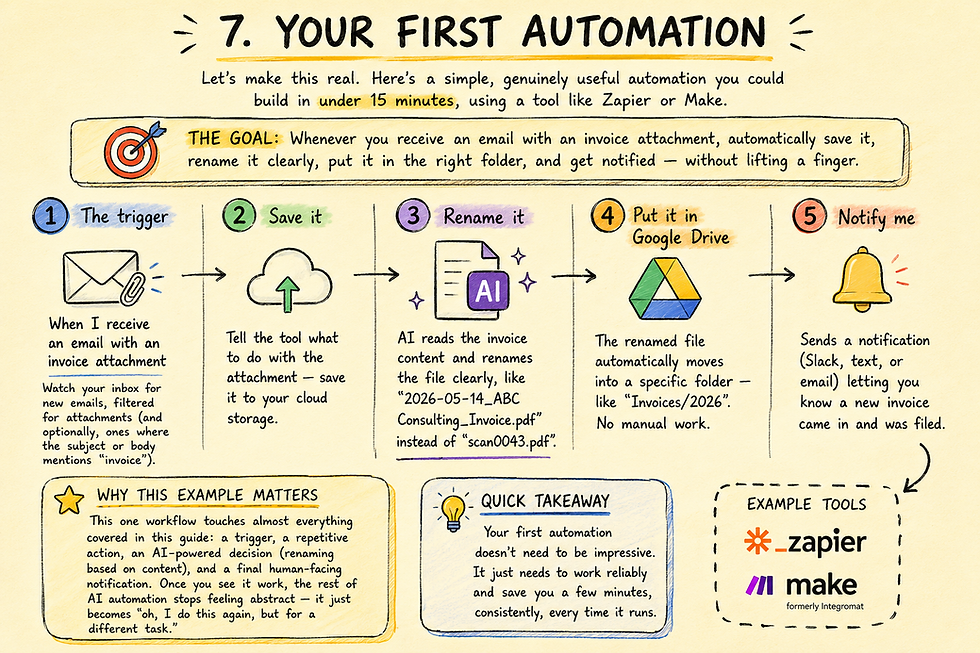
Let's make this real. Here's a simple, genuinely useful automation you could build in under 15 minutes, using a tool like Zapier or Make.
The goal: Whenever you receive an email with an invoice attachment, automatically save it, rename it clearly, put it in the right folder, and get notified — without lifting a finger.
Step 1: The trigger — "When I receive an email with an invoice attachment"
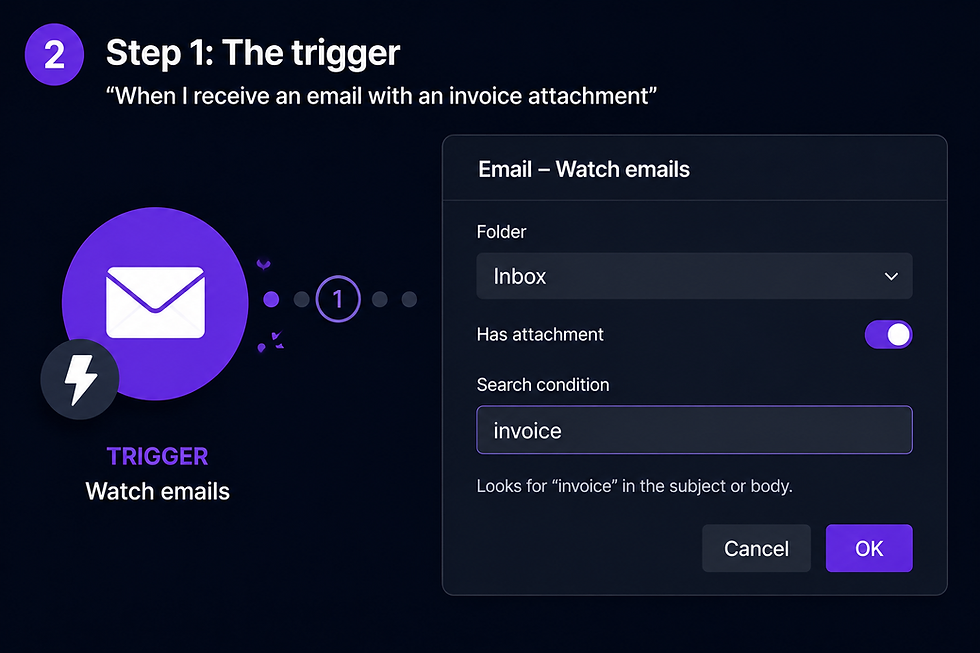
This is the starting point of every automation: the event that kicks everything off. In your automation tool, you'd set the trigger to watch your inbox for new emails, filtered specifically to ones with an attachment (and optionally, ones where the subject or body mentions "invoice").
Step 2: Save it

Once the trigger fires, the next step tells the tool what to do with the attachment — in this case, save it to your cloud storage. You're not doing this manually; you're just telling the automation, one time, where it should go.
Step 3: Rename it
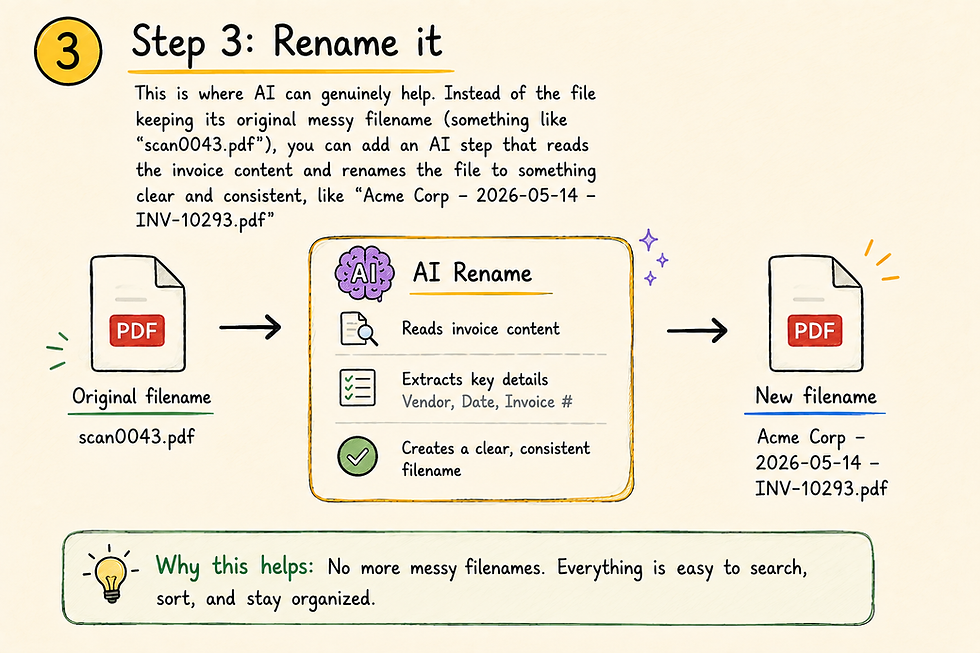
This is where AI can genuinely help. Instead of the file keeping its original messy filename (something like "scan0043.pdf"), you can add an AI step that reads the invoice content and renames the file to something clear and consistent, like "Document", etc.
Step 4: Put it in Google Drive

The renamed file automatically moves into a specific folder — for example, a "Invoices/2026" folder you've already set up. No manual dragging and dropping required.
Step 5: Notify me
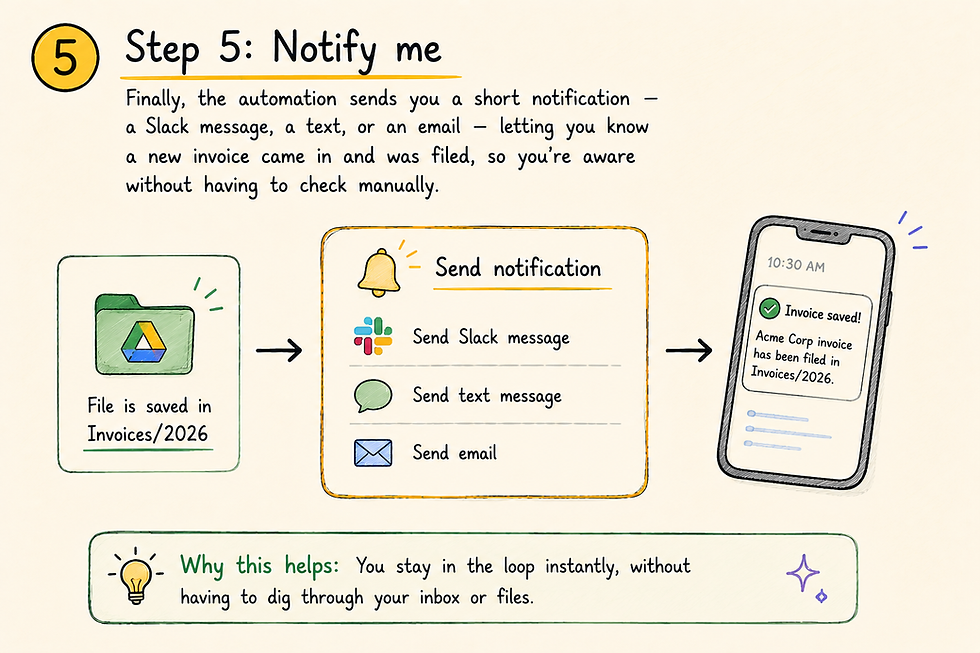
Finally, the automation sends you a short notification — a Slack message, a text, or an email — letting you know a new invoice came in and was filed, so you're aware without having to check manually.
Why this example matters
This one workflow touches almost everything covered in this guide: a trigger, a repetitive action, an AI-powered decision (renaming based on content), and a final human-facing notification. Once you've built something like this and seen it actually work, the rest of AI automation stops feeling abstract — it just becomes "oh, I do this again, but for a different task."
Quick Takeaway: Your first automation doesn't need to be impressive. It just needs to work reliably and save you a few minutes, consistently, every time it runs.
8. Frequently Asked Questions
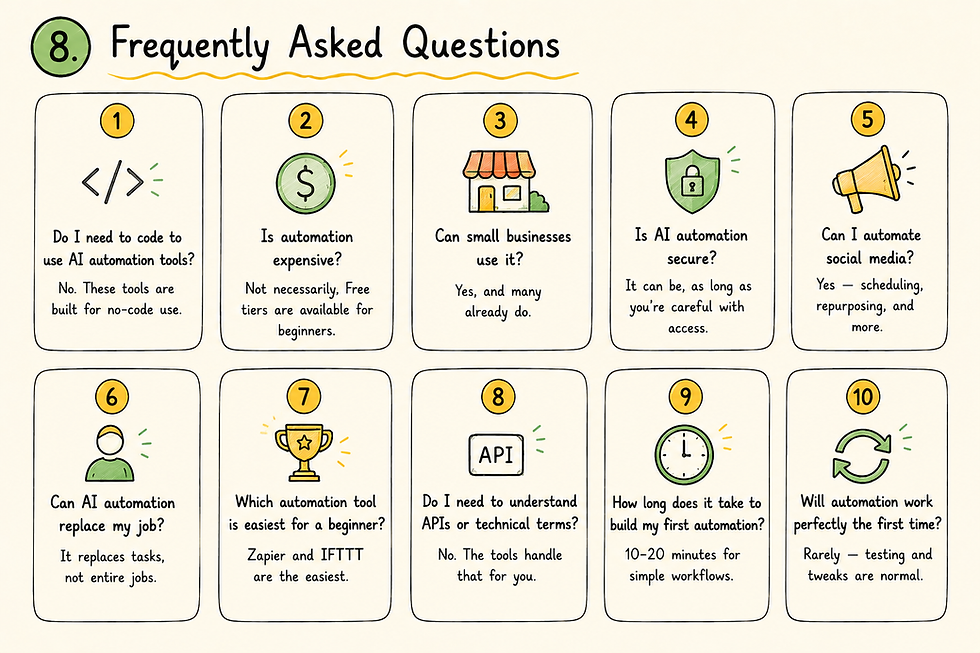
Do I need to code to use AI automation tools? No. Every tool covered in this guide — Zapier, Make, Power Automate, IFTTT, and even n8n at a basic level — is designed to be used without writing code, through drag-and-drop or guided setup.
Is automation expensive? Not necessarily. Most tools offer a genuinely usable free tier for beginners and light personal use. Costs typically only become significant once you're running automation at a business scale, with high volume.
Can small businesses use it? Yes, and many already do. Common small business uses include customer support routing, invoice generation, appointment scheduling, and marketing reports — all without hiring extra staff.
Is AI automation secure? It can be, as long as you're thoughtful about what you connect. Only grant access to accounts and data the automation actually needs, use strong unique passwords, and periodically review your connected apps.
Can I automate social media? Yes — scheduling posts, repurposing content into multiple formats, and generating caption drafts are some of the most common and beginner-friendly automations available.
Can AI automation replace my job? For most roles, it replaces specific repetitive tasks within a job, not the entire job itself. The parts of work requiring judgment, relationships, and original thinking are still very much human territory.
Which automation tool is easiest for a total beginner? Zapier and IFTTT are the most beginner-friendly starting points, thanks to their guided, simple setup process. IFTTT is best for personal use; Zapier scales better if you plan to grow into business use.
Do I need to understand APIs or technical terms to get started? No. Beginner-friendly tools handle those technical connections behind the scenes. You'll interact with plain, readable options like "when a new email arrives" — not raw technical code.
How long does it take to build my first automation? Most simple automations, like the invoice example above, can be built in 10–20 minutes once you're familiar with the tool's interface.
Will automation work perfectly the first time? Rarely, and that's normal. Expect to test and adjust your first few automations before they run smoothly and reliably.
Conclusion

You don't need to understand agentic workflows, self-hosting, or advanced logic branches to get real value from AI automation. You need one repetitive task that annoys you, and about fifteen minutes.
Pick a single thing — sorting invoices, summarizing emails, drafting weekly reports — and build it in one tool before you touch anything else. Let it run for a week. Notice what breaks, fix it, and only then consider adding a second automation.
The people who get the most out of AI automation aren't the ones who set up the most complicated systems. They're the ones who built a simple habit of automating one small thing at a time, consistently, until it added up to real time saved.
Start small. Start today. That's genuinely the whole strategy.



Comments