


Complete Beginner's Guide to Claude AI (2026)

The Complete Beginner's Guide to Claude AI (2026): Features, Prompting, Projects, Artifacts, Use Cases, Pricing, Comparisons, and 100+ Practical Tips

Here's a question worth asking: do you actually need another AI tool, or do you just need to understand the one you already have access to a little better?
If you've heard people talk about Claude and wondered whether it's worth your time, or if you've opened it once, typed a question, and closed the tab without really exploring it, this guide is built for you.
We're going to cover what Claude actually is, what it's genuinely good at (and not so good at), how much it costs in plain terms, and how to use its standout features — Projects, Artifacts, memory, and more — without needing a computer science degree to follow along.
This isn't a marketing pitch. Claude has real limitations, and we'll point them out clearly. But it also has some genuinely useful features that a lot of people never discover, and by the end of this guide, you'll know exactly where to start.
Here's what you'll walk away with:
A plain-English explanation of what Claude is and how it's different from other AI chatbots
A full breakdown of every Claude plan and what you actually get for your money in 2026
Step-by-step walkthroughs of Claude's standout features, including Projects and Artifacts
Real use cases for work, school, and small business, with example prompts
Over 100 practical tips woven throughout, not padded into a separate list
An honest comparison against ChatGPT, Gemini, and Copilot
Common mistakes beginners make, and how to avoid them
Let's get into it.
Table of Contents
What Is Claude AI?

Claude is an AI chatbot made by a company called Anthropic. In plain terms, it's a program you can talk to in normal, everyday language, and it writes, explains, analyzes, and helps you think through almost anything you throw at it.
You type a message — a question, a request, a document you want help with — and Claude responds in seconds. There's no special code to learn. If you can send a text message, you already know the hardest part of using Claude.
What tends to set Claude apart from other AI chatbots is how it handles long, complicated material and careful writing. If you've ever pasted a huge document into an AI tool and gotten back a rushed, shallow summary, Claude is generally built to do better with exactly that kind of task. It's also become one of the go-to tools among software developers for a similar reason — it tends to track long, detailed instructions accurately instead of losing the thread halfway through.
None of that means Claude is perfect or "the best" AI tool in every situation. It has real weaknesses too, which we'll get into honestly throughout this guide, especially in the comparison section later on.
Who Makes Claude, and Why Does That Matter?
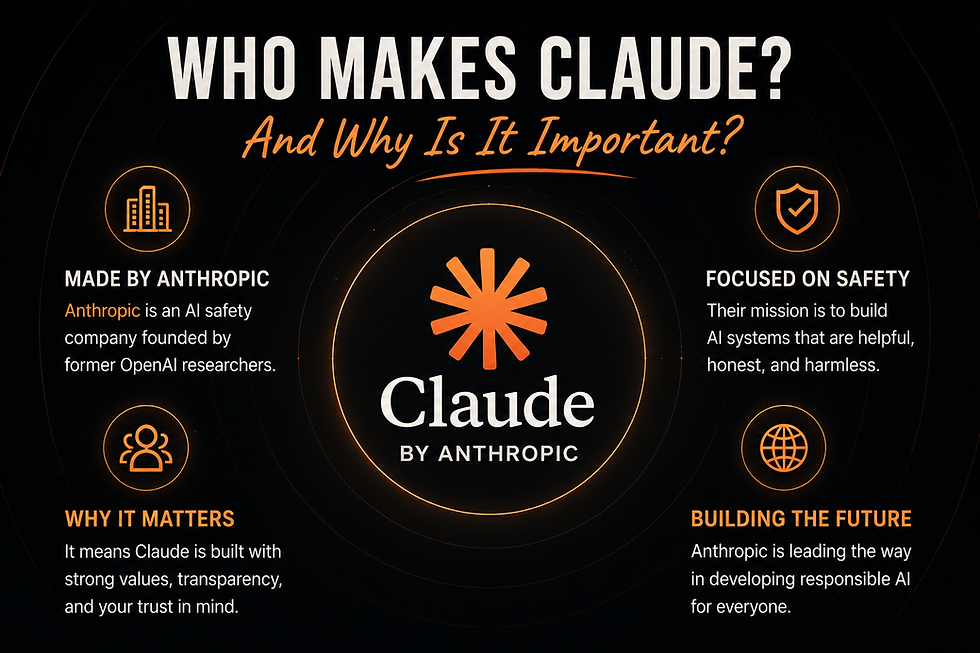
Claude is built by Anthropic, a company founded in 2021 by a group of researchers, several of whom had previously worked on AI safety at OpenAI. Anthropic has positioned itself around a specific idea: building AI that's designed to be helpful, honest, and careful about the harm it could cause, an approach they call Constitutional AI.
Why should you, as someone just trying to write an email or plan a project, care about any of that? Mostly because it shapes how Claude behaves in practice. You'll notice Claude tends to be more cautious about certain requests — it may decline things a lot of other tools wouldn't blink at, and it tends to be upfront when it's uncertain about something rather than guessing confidently.
That's a deliberate design choice, not a bug, though it can occasionally feel like Claude is being overly careful for a completely harmless request.
Claude's Models Explained: Haiku, Sonnet, Opus, and Beyond

One of the more confusing parts of getting started with Claude is the model names. Anthropic doesn't just have "Claude" — it has several different versions, each built for a different balance of speed, cost, and capability. Here's the plain-English breakdown.
Claude Haiku is the fastest and cheapest model in the lineup. Think of it as the model built for quick, simple tasks where you want a near-instant response and don't need deep, careful reasoning — things like quick rewrites, simple questions, or high-volume tasks.
Claude Sonnet is the everyday workhorse. It balances speed and intelligence well, and it's what most people end up using for the bulk of their day-to-day work, from writing to coding to general questions. As of 2026, Sonnet 5 is available across both the free and paid tiers, which is a meaningful shift — a genuinely capable mid-tier model is no longer locked behind a paywall.
Claude Opus is the most powerful model built for complex reasoning, deep analysis, and demanding coding or agentic tasks. It costs more to run and can be slower, so it's usually worth reaching for when a task genuinely needs the extra horsepower — a tricky technical problem or an in-depth strategic analysis — rather than for routine daily tasks.
Claude Fable sits above Opus as part of Anthropic's newer top tier of models, built for the most demanding long-running and agentic work. It's the most capable (and most expensive) option, generally available through usage credits on paid plans rather than unlimited access.
A quick note on naming: Anthropic updates these models fairly often, and the specific version numbers you'll see (like Sonnet 4.6 vs Sonnet 5, or Opus 4.7 vs 4.8) change over time as the company ships improvements. The general hierarchy — Haiku for speed, Sonnet for everyday use, Opus and Fable for the heaviest tasks — tends to hold steady even as the specific numbers shift, so don't get too hung up on memorizing exact version names.
Tip #1: If you're not sure which model to pick for a task, start with whatever your plan defaults to. It's usually Sonnet, and it's more than capable for most everyday work.
Tip #2: Save Opus or Fable usage for tasks that genuinely need deep reasoning — long research questions, complex coding problems, or careful multi-step analysis — since heavier models tend to eat into usage limits faster.
Getting Started: Creating an Account and Your First Conversation

Getting into Claude takes about two minutes. Here's the step-by-step walkthrough.
Step 1: Go to claude.ai. You can sign up with an email address or a Google account. No credit card is required for the free plan.
Step 2: Verify your email if you signed up that way. This usually takes seconds.
Step 3: You'll land on the main chat screen. There's a text box at the bottom where you type your message, and that's genuinely most of what you need to know to get started.
Step 4: Type your first message. Don't overthink this. Something like "Can you help me write a follow-up email to a client who hasn't responded in two weeks?" is a perfectly good first message.
Step 5: Explore the sidebar. On the left, you'll see your conversation history, a Projects tab, and account settings. We'll cover Projects in depth further down, but it's worth knowing it's there from day one.
Tip #3: Rename your conversations. By default, Claude names a chat based on your first message, which can get confusing once you have dozens of chats. Click the three-dot menu next to a conversation to rename it something you'll actually recognize later.
Tip #4: Use the "New Chat" button liberally. Starting a fresh conversation for each unrelated task keeps Claude focused and tends to produce cleaner answers than one long, meandering thread covering five different topics.
Common mistake to avoid: Beginners often try to have one giant, ongoing conversation with Claude for everything — work, personal questions, random curiosities — all mixed together. This makes old information harder to find and can occasionally cause Claude to blend context from unrelated topics. Separate chats by topic instead.
Claude Pricing in 2026: Every Plan Explained

This is the section most people actually search for, so let's get concrete. As of mid-2026, Claude has five main plans: Free, Pro, Max, Team, and Enterprise. Here's what each one actually includes, based on Anthropic's official pricing page.
Free — $0/month

The Free plan is far more capable than most people expect. As of 2026, it includes:
Chat access on web, iOS, Android, and desktop
Code generation and data visualization
Web search
Memory across conversations (a feature that used to be paid-only)
File creation and code execution
Connectors to Slack and Google Workspace
Extended thinking for complex work
Best for: Students, casual users, and anyone testing Claude before committing to a paid plan. The catch is usage limits — Free resets on a rolling window, and heavy daily use will bump into the ceiling faster than you'd like.
Pro — $17/month billed annually ($20/month billed monthly)

Pro includes everything in Free, plus a meaningfully larger usage allowance and access to Claude's full toolkit:
Significantly more usage per session
Claude Code (Anthropic's coding-focused tool)
Claude Cowork (an agentic work assistant, covered later in this guide)
Claude Design and Claude Science tools
Unlimited Projects to organize your chats and files
Access to Research features
Access to more Claude models
Claude for Microsoft 365 integration
Best for: Anyone using Claude as part of their regular weekly workflow — freelancers, office workers, small business owners, and students who rely on it for ongoing schoolwork.
Max — from $100/month

Max is built for people who work with Claude for hours at a stretch and keep hitting Pro's limits. It comes in two tiers:
Max 5x: 5 times the usage of Pro, $100/month
Max 20x: 20 times the usage of Pro, $200/month
Both tiers include everything in Pro, plus higher output limits, early access to new features, and priority access during high-traffic periods.
Best for: Heavy daily users — developers running long coding sessions, researchers processing large volumes of material, or anyone whose work genuinely keeps them in Claude most of the day.
Team — from $20/seat/month (Standard) or $100/seat/month (Premium), billed annually

Team plans add shared workspaces, admin controls, and centralized billing for organizations of 2 to 150 people. Standard seats get more usage than Pro, and Premium seats get 5 times that.
Team includes single sign-on, shared Projects, and enterprise search across your organization's connected tools.
Enterprise — custom pricing (starting around $20/seat plus usage)

Enterprise is built for large organizations needing advanced security: SCIM support, audit logs, custom data retention, role-based access, and a HIPAA-ready offering for regulated industries.
Pricing scales with usage at API rates on top of the seat cost.
Claude Pricing Comparison Table
Plan | Price | Best For | Key Features |
Free | $0 | Casual users, students testing the waters | Chat, memory, web search, file creation |
Pro | $17-20/month | Regular weekly use, freelancers, small business | Unlimited Projects, Claude Code, more usage |
Max 5x | $100/month | Heavy daily users | 5x Pro's usage, higher output limits |
Max 20x | $200/month | All-day power users | 20x Pro's usage, priority access |
Team Standard | $20-25/seat/month | Small teams | Shared Projects, SSO, admin controls |
Team Premium | $100-125/seat/month | Teams with heavy users | 5x Standard seat usage |
Enterprise | Custom (~$20/seat + usage) | Large, regulated organizations | SCIM, audit logs, HIPAA-ready |
Warning: Usage limits on every plan are based on a combination of conversation length, complexity, and which model you're using — not a fixed message count. This means the exact number of messages you get varies session to session, which can be confusing if you're expecting a hard number like "50 messages a day." Check Settings > Usage inside your account to see where you currently stand.
Tip #5: If you're on the fence between Free and Pro, try Free for two weeks of real, regular use first. If you're consistently hitting limits before your workday is done, that's your signal to upgrade — don't upgrade preemptively based on hype alone.
Tip #6: Annual billing saves you roughly 15% compared to paying monthly on both Pro and Team plans. If you're confident you'll stick with Claude, the annual discount adds up.
Tip #7: You can switch plans anytime, and any unused time on your current plan gets credited toward the new one — so upgrading mid-cycle doesn't mean paying twice for the same days.
How to Write Prompts Claude Actually Responds Well To

A "prompt" is simply what you type into Claude. There's no special syntax required, but a few habits make a genuinely noticeable difference in the quality of what you get back.
Be specific about your goal. "Help me with my resume" gets a vague, generic response. "Rewrite my resume's work experience section to sound more results-focused, keeping each bullet under two lines" gets something usable immediately.
Give context Claude doesn't have. Claude knows nothing about your specific job, company, or situation unless you say so. A sentence or two of background goes a long way.
Specify format and length. If you want bullet points, say so. If you want under 100 words, say so. Vague length requests like "keep it short" produce inconsistent results.
Name the tone you want. Formal, casual, warm, direct — naming it directly is far more reliable than hoping Claude guesses correctly from context.
A Before-and-After Example

Before: "Write a product description for my candle business."
After: "Write a product description for a lavender soy candle from my small handmade candle business. Audience is people shopping for self-care gifts. Tone should be warm and cozy, not salesy. Keep it to 3 short sentences, and mention it's hand-poured."
The second version gives Claude a goal, an audience, a tone, a length, and a specific detail to include — which is exactly why it works so much better on the first try.
Tip #8: Treat the first response as a draft, not a final answer. If something's close but not quite right, just say so directly — "make this more casual" or "cut this in half" both work well.
Tip #9: Ask follow-up questions instead of starting a new conversation from scratch. Claude retains context within a single chat, so iterating is usually faster than re-explaining everything in a new one.
Tip #10: If you have an example of the tone or style you want, paste it in as a reference. Claude is very good at matching a demonstrated style once it has something concrete to work from.
For a much deeper dive into this exact skill, see our full guide on how to write better AI prompts, which covers the anatomy of a great prompt in detail with dozens of additional examples.
Claude Projects: The Feature Most Beginners Never Try

If there's one feature that separates casual Claude users from people who get real, ongoing value out of it, it's Projects. And it's genuinely one of the most under-used features on the platform — most people never create a single one.
What a Project actually is: think of it as a dedicated workspace inside Claude that bundles together custom instructions, a file library, and a set of related conversations, all in one place. Instead of every new chat starting from a completely blank slate, a Project
carries context forward automatically.
Step-by-Step: Setting Up Your First Project

Step 1: Click "Projects" in the left sidebar, or go directly to claude.ai/projects.
Step 2: Click "New Project" in the top-right corner.
Step 3: Give it a specific, descriptive name. "Marketing" is too vague — something like "Q3 Product Launch — Email Sequence" will still make sense to you six months from now.
Step 4: Write custom instructions. This is where you tell Claude what it needs to know every single time it works within this Project — your role, your goals, your preferred tone, any recurring context.
Step 5: Upload relevant files to the Project's knowledge base — PDFs, text documents, spreadsheets, or code files. Claude will reference these automatically in every conversation inside the Project, so you're not re-uploading or re-explaining the same background every time.
Step 6: Start a new chat from within the Project. It will already have your instructions and files in context.
What Projects Are Good For
Freelancers and consultants: one Project per client, holding that client's brand voice, past work, and preferences
Students: one Project per class, holding your syllabus, notes, and recurring assignment formats
Small business owners: one Project for marketing copy that always needs to match your brand voice
Writers: one Project per book or long-form piece, so Claude has consistent context across dozens of sessions
Important Limitations to Know
Projects are available on Pro, Max, Team, and Enterprise plans — not on Free. On Pro, Projects are unlimited in number, but each individual Project has a practical ceiling on how much total content it can hold (roughly 200,000 tokens, or somewhere around 150,000 words, though this varies by file type).
Known limitation: Project retrieval pulls only the most relevant content per question, not necessarily everything you've uploaded. This means if you dump in a huge, disorganized pile of unrelated files, Claude may not draw on all of it for any single answer. Keep each Project focused on 5-10 genuinely relevant files rather than everything you own.
Tip #11: The Project name and description are for you, not for Claude — Claude doesn't actually read them as instructions. The real context needs to live in the "custom instructions" field and the uploaded files.
Tip #12: On Team and Enterprise plans, Projects can be shared with teammates for collaborative work. On Pro, Projects are individual, though you can manually share your instructions with a colleague who sets up their own.
Common mistake to avoid: Creating one enormous "Everything" Project and dumping every file you own into it. This tends to dilute the relevance of what Claude pulls from for any given question. Smaller, focused Projects consistently outperform one giant catch-all.
Claude Artifacts: Turning Conversations Into Real Deliverables

Artifacts are one of Claude's most distinctive features, and one that genuinely surprises a lot of beginners the first time they see it in action.
What an Artifact is: when Claude produces something that stands on its own — a piece of code, a formatted document, a chart, a simple web page, an interactive tool — instead of just dropping it into the chat as plain text, it opens in a separate panel next to the conversation. You can see the live result, keep talking to Claude to refine it, and watch the panel update in real time.
Artifacts became available on Claude's free tier in early 2026, which was a meaningful shift — this used to be a paid-only feature.
What You Can Actually Build
Simple web pages with HTML, CSS, and JavaScript
Interactive React components — calculators, forms, small tools
Charts and data visualizations
Diagrams (including flowcharts and mind maps)
Formatted documents and reports
Working code snippets in most common programming languages
A Practical Walkthrough

Say you want a simple budget calculator. You could type: "Build me a simple monthly budget calculator where I enter my income and expenses by category, and it shows me what's left over." Claude will generate the working tool directly in the Artifact panel, and you can immediately start using it — typing in numbers and seeing results — without any setup.
If something's off, just say so in the chat — "make the categories editable" or "add a savings goal field" — and Claude updates the Artifact directly, often highlighting just the specific part that changed.
Sharing and Publishing

You can publish an Artifact and share it as a public link. The person you send it to doesn't need a Claude account to view it, and if they do have one, they can "fork" it — making their own editable copy without touching your original.
Honest limitation: Artifacts get you most of the way to a working prototype, but they're not a replacement for real software development. There's no persistent backend, database, or authentication system behind a typical Artifact unless you specifically build it with Claude's file creation and code execution tools. Think of Artifacts as excellent for prototyping, demonstrations, and one-off internal tools — not for shipping a production application to paying customers without further engineering work.
Tip #13: Use Artifacts for anything you'd otherwise build in a separate tool for a one-time need — a quick calculator, a simple tracker, a data visualization — rather than opening a whole new app just for a five-minute task.
Tip #14: If you're iterating on a complex Artifact, be specific about what to change rather than saying "make it better." Point to the exact section or behavior you want adjusted.
Common mistake to avoid: Assuming an Artifact is production-ready code just because it works when you test it. Anything meant for real users, especially anything handling sensitive data, needs a proper development review before going live.
Memory, Extended Thinking, and Other Features Worth Knowing

Beyond Projects and Artifacts, Claude has a handful of features that quietly make a big difference once you know they exist.
Memory Across Conversations

As of 2026, memory is available even on the Free plan. This means Claude can recall relevant details from your past conversations without you having to re-explain your job, your preferences, or ongoing projects every single time you start a new chat.
Tip #15: You can review and manage what Claude remembers about you in your account settings. If something's inaccurate or outdated, correct it directly rather than assuming Claude will figure it out on its own.
Tip #16: If you're working on something sensitive or just want a completely clean slate, use an incognito-style chat (available in the interface) so it doesn't factor into your ongoing memory.
Extended Thinking

For genuinely complex questions — multi-step reasoning, tricky logic problems, careful analysis — Claude has an "extended thinking" mode that lets it work through the problem more thoroughly before responding, rather than answering immediately.
Tip #17: You don't usually need to trigger this manually. Claude tends to apply deeper reasoning automatically when a question calls for it, but if a response feels rushed on a genuinely complex question, explicitly asking Claude to "think through this step by step" can help.
Web Search

Claude can search the web for current information rather than relying solely on its training data, which matters for anything time-sensitive — current events, recent statistics, or anything that could have changed since its last training update.
Tip #18: If you're asking about anything time-sensitive (current prices, recent news, who holds a position right now), it's worth explicitly confirming Claude actually searched rather than assuming it did, especially for older conversations.
Skills

Skills are a newer feature that let Claude follow pre-built, specialized instructions for particular types of tasks — like creating polished Word documents, PowerPoint presentations, or Excel spreadsheets — using best practices baked into the skill rather than generic defaults.
Tip #19: If you're producing a specific file type regularly (like presentations for work), mentioning the file type explicitly in your request helps Claude apply the right formatting conventions automatically.
Connectors

Connectors let Claude link up with other services you use — Google Workspace, Slack, and various other tools — so it can pull in real context from your actual work rather than you copying and pasting everything manually.
Tip #20: Only connect services you're comfortable with Claude reading from. Review what permissions each connector actually grants before turning it on, especially for anything containing sensitive business or client information.
Claude Apps and Integrations

Claude isn't limited to the claude.ai website. As of 2026, Anthropic has built out a genuinely wide ecosystem of apps and integrations.
Claude Code: a tool for developers that lets you delegate coding tasks from the command line, desktop, or mobile app
Claude Cowork: an agentic work assistant for non-developers, designed to handle heavier multi-step tasks like research, analysis, and long-form projects
Claude for Chrome: a browsing agent that can navigate and act on websites on your behalf
Claude for Microsoft 365: integration with Word, Excel, and Outlook
@Claude (Tag): a Slack-based interface that lets anyone on a team tag Claude into a conversation and delegate a task
Mobile apps: full-featured iOS and Android apps, useful for quick questions or reviewing work on the go
Tip #21: If you primarily work inside Microsoft 365 or Slack, check whether your organization has these integrations enabled before assuming you need to copy-paste everything into the standalone claude.ai site.
Tip #22: Claude Code and Claude Cowork are included in Pro and above, but not on Free — worth knowing if a "quick coding question" turns into wanting the full coding-agent experience.
Real-World Use Cases by Audience

Here's where the rubber meets the road. Let's go through practical, real examples for each type of reader this guide is written for.
For Office Workers

Drafting emails and reports. Paste your rough notes and ask Claude to turn them into a structured, professional draft. Example: "Turn these bullet points into a short report with an intro, three sections, and a conclusion. Keep the tone neutral: [paste notes]."
Summarizing meetings. If you have notes or a transcript, ask for a structured summary: "Summarize this into Key Decisions, Action Items, and Open Questions, under 200 words."
Tip #23: For recurring weekly reports, set up a Project with your report template and past examples as reference files, so every new report matches your established format automatically.
For Students

Studying for exams. Turn your notes into flashcards or a quiz: "Turn this into 10 flashcard-style questions and answers I can use to quiz myself: [paste notes]."
Understanding difficult concepts. Ask for a plain-language explanation pitched at your actual level: "Explain the causes of the French Revolution to a high school student with no background in European history, using one clear example."
Tip #24: Set up one Project per class, with your syllabus and notes uploaded, so Claude always has the right context without you re-explaining your course every time.
Common mistake to avoid: Using Claude to write an entire essay for submission. Beyond the academic integrity issue at most schools, you also lose the actual learning that comes from wrestling with the material yourself. Use it to check understanding, generate practice questions, or get feedback on your own draft instead.
For Entrepreneurs and Small Business Owners
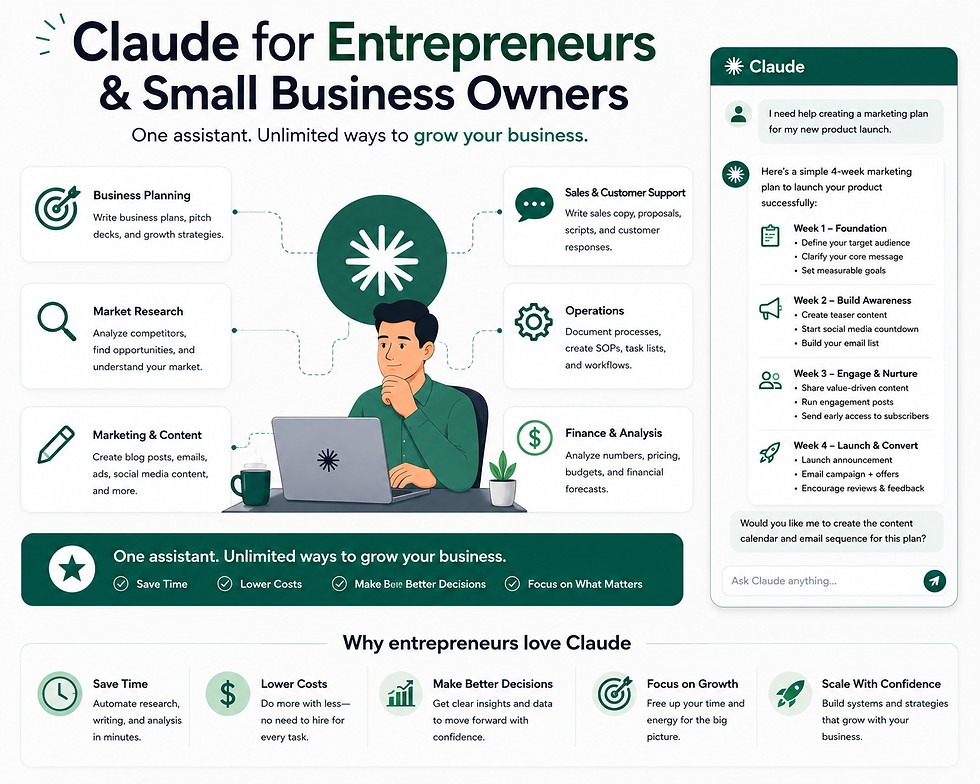
Brainstorming business ideas. "Suggest 10 small business ideas for someone with a background in graphic design and a $2,000 budget. Briefly explain the pros and cons of each."
Marketing campaigns. "Help me plan a simple marketing campaign for a new dog-walking business. Budget is $500/month, target audience is busy professionals in a mid-sized city. Suggest 3-4 channels and one specific idea for each."
SWOT analysis. "Do a SWOT analysis for my small bakery, which specializes in gluten-free pastries in a suburban area with two direct competitors."
Tip #25: Set up a Project specifically for your brand voice, with a few examples of your best past marketing copy uploaded, so every new piece of content Claude generates matches your established tone.
For Freelancers

Client proposals. Ask Claude to turn a rough outline into a polished proposal, specifying your usual structure and tone.
Managing multiple clients. Set up one Project per client with their brand guidelines, past deliverables, and preferences, so switching between clients doesn't mean re-explaining context every time.
Tip #26: If you bill by the hour, be upfront with yourself about how much AI-assisted drafting speeds up your actual billable work — it's a genuine productivity gain, but it also means being honest about what you're charging for.
For Small Teams

Meeting summaries shared across the team using Claude Cowork or the Slack-based @Claude integration, so notes reach everyone without manual copy-pasting.
Shared Projects on Team plans, so brand guidelines, style guides, and recurring templates live in one place accessible to everyone, rather than scattered across individual accounts.
Claude vs ChatGPT vs Gemini vs Copilot: An Honest Comparison

There's no single "best" AI assistant — each of the major tools genuinely excels in different areas, and the honest answer to "which one should I use" usually depends on what you're actually doing.
Where Claude Tends to Win

Claude generally performs strongly on long-document analysis, careful multi-step writing, and coding — particularly complex codebases and detailed technical work.
Independent blind comparisons in 2026 have repeatedly found Claude producing the strongest results specifically in writing-quality rounds, where nuance, tone, and following detailed constraints matter most. It also tends to follow long, detailed instructions without drifting off the constraints you gave it, which matters a lot for professional work with a lot of specific requirements.
Where ChatGPT Tends to Win

ChatGPT has a broader plugin and integration ecosystem, strong image generation, and voice mode. It also has the largest user base and community of tips and third-party guides, which matters if you want a lot of existing how-to content to lean on.
In head-to-head testing, ChatGPT has performed particularly well on structured, business-strategy-style reasoning tasks.
Where Gemini Tends to Win

Gemini has the deepest native integration with Google Workspace (Gmail, Docs, Sheets), strong multimodal capabilities (images and video), and in some configurations, a genuinely enormous context window for processing huge amounts of text or code at once.
If your work already lives inside Google's ecosystem, Gemini removes a lot of app-switching friction.
Where Copilot Tends to Win

Copilot's strength is deep integration into Microsoft 365 — Word, Excel, PowerPoint, Outlook — for anyone whose work is already built around those tools.
Its standalone chat experience is solid but not generally considered a category leader on its own; its real value is the Microsoft ecosystem tie-in.
Comparison Table
Category | Best Choice | Why |
Long documents & analysis | Claude | Strong at tracking detailed context accurately across long material |
Coding, especially large codebases | Claude | Consistently rated among the top choices for complex coding tasks |
Careful, nuanced writing | Claude | Tends to win blind writing-quality comparisons |
Image generation & multimodal | Gemini or ChatGPT | Both have more mature image and video capabilities |
Google Workspace users | Gemini | Native integration with Docs, Sheets, Gmail |
Microsoft 365 users | Copilot | Native integration with Word, Excel, Outlook |
Plugin/integration ecosystem | ChatGPT | Largest third-party ecosystem and community |
Research with citations | Perplexity (honorable mention) | Purpose-built for sourced, cited answers |
The honest takeaway: a meaningful number of regular AI users end up using two tools rather than one — for example, Claude for writing and coding, paired with Gemini or ChatGPT for whichever ecosystem they already live in. There's nothing wrong with that. Trying to force one tool to do everything isn't a rule you need to follow.
Tip #27: If you're deciding between Claude and ChatGPT specifically for one main task, ask yourself: is this primarily long-form writing or code (Claude tends to edge ahead), or does it need image generation or a huge plugin ecosystem (ChatGPT tends to edge ahead)?
My Personal Claude Workflow

Here's a concrete look at how a regular Claude user might structure a working week, to make all of this a bit less abstract.
Monday mornings start with a quick "what's on my plate" check — pasting in a messy task list and asking Claude to organize it by priority for the week.
Ongoing client or project work lives inside dedicated Projects, one per client or major initiative, with brand guidelines and past deliverables uploaded so every new draft starts with full context instead of a blank page.
Meeting days end with pasting rough notes into Claude for a clean summary — Key Decisions, Action Items, Open Questions — before those notes get shared with the team.
Anything requiring a quick tool or calculator — a budget estimate, a simple tracker — gets built as an Artifact rather than opening a separate spreadsheet or app for a five-minute need.
Research-heavy tasks get a fresh, focused conversation rather than getting mixed into an ongoing Project thread, since research often benefits from a clean slate rather than accumulated context from unrelated work.
Tip #28: Block out 15 minutes once a week to review and clean up your Projects and pinned conversations. Old, outdated context sitting in a Project can quietly degrade the quality of new responses if it's no longer accurate.
Common Beginner Mistakes

Being too vague. A one-line request like "help with my resume" gets a generic response. Specificity is the single biggest lever for better output.
Never using Projects. This is genuinely the most under-used feature among Pro subscribers, and it's often the difference between "fine" and "genuinely useful" ongoing results.
Treating the first response as final. Iterating with follow-up feedback almost always produces a noticeably better result than accepting the first draft.
Mixing unrelated topics in one long conversation. This makes old information hard to find and can blend context in confusing ways.
Not fact-checking factual claims. Claude, like every AI tool, can state something confidently that's wrong. Treat factual claims as a starting point to verify, not a final source.
Pasting sensitive company data into a personal account without checking your employer's AI usage policy first.
Assuming Free is too limited to bother with. For many casual use cases, Free genuinely covers real, regular use — try it before assuming you need to pay.
When NOT to Use Claude

Being honest about limitations matters as much as covering the strengths.
Real-time, fast-changing information without web search enabled. If you need the literal current stock price or breaking news from the last hour, always verify Claude actually searched rather than answering from memory.
High-stakes legal, medical, or financial decisions. Claude can provide general information and help you understand concepts, but it isn't a substitute for a licensed professional for decisions with real consequences.
Anything requiring guaranteed factual precision without your own verification. Even a strong AI model can occasionally state something incorrect with full confidence. Important numbers, quotes, or claims need a human check before they go into anything important.
Fully autonomous, unsupervised business decisions. Claude is an assistant, not a replacement for your own judgment on things like hiring, major purchases, or strategic pivots.
Tasks requiring true, verified originality claims — like art you plan to copyright as entirely your own creative work in a context where AI assistance needs to be disclosed or excluded.
Hidden Features Most People Miss

Incognito-style conversations that don't factor into your ongoing memory, useful for one-off sensitive topics.
Editing Artifacts in place by highlighting a specific section and describing the change, rather than regenerating the whole thing from scratch.
Custom instructions at the account level (separate from Project-specific instructions) that apply across all your conversations — useful for setting a default tone or format preference once instead of repeating it every time.
Exporting and forking published Artifacts, letting collaborators build on shared work without touching your original.
The usage dashboard under Settings > Usage, which shows exactly where you stand against your plan's limits in real time, rather than guessing.
Advanced Tips for Power Users

Assign Claude a role for more consistent, focused output: "Act as a career coach and review this resume summary."
Ask for multiple options at once rather than one answer: "Give me three versions of this email — one formal, one casual, one brief enough for mobile."
Chain Projects with Artifacts — build reusable templates as Artifacts within a Project's knowledge base, so recurring tasks start from a proven structure instead of scratch.
Use extended thinking explicitly for genuinely hard problems by asking Claude to "work through this step by step" before giving a final answer.
Combine Claude with a research tool like Perplexity for citation-heavy work, then bring the sourced findings into Claude for drafting and structuring.
What's Changed Recently

A few notable shifts worth knowing about if you used Claude a while back and are returning to it in 2026:
Memory moved to the Free plan. This used to be paid-only and is now available to everyone.
Artifacts became available on Free as of early 2026, previously a paid-only feature.
Sonnet 5 became the default model on both Free and Pro as of mid-2026, meaning free users now get access to a genuinely capable mid-tier model rather than an older, weaker one.
Anthropic introduced a tier above Opus (Fable and Mythos), reflecting a broader industry shift toward multiple specialized top-tier models rather than one single flagship.
Claude Cowork expanded from a macOS-only research preview to general availability across desktop, web, and mobile, with remote sessions and scheduled tasks that can run without your device staying online.
Where Claude Is Headed

Predicting AI product roadmaps with certainty isn't really possible, and any specific claims here would be speculation dressed up as fact.
What does seem like a reasonable, grounded expectation based on the pattern of 2025-2026 updates: continued expansion of agentic features (tools that can complete multi-step tasks with less hand-holding), deeper integrations into everyday work tools like Microsoft 365 and Slack, and continued competition with OpenAI and Google pushing free-tier capabilities upward across the whole industry.
If you're building a long-term workflow around Claude, it's worth periodically checking Anthropic's official blog and pricing page, since specific features and limits do shift over time, sometimes every few months.
Frequently Asked Questions

Is Claude AI free to use? Yes. Claude has a genuinely usable Free plan that includes chat, memory, web search, file creation, and Artifacts. Paid plans mainly raise your usage limits and add features like unlimited Projects and Claude Code.
Is Claude better than ChatGPT? Neither is universally "better." Claude tends to perform particularly well on long documents, careful writing, and coding, while ChatGPT has a broader plugin ecosystem and stronger image generation. Many regular users end up using both for different tasks.
Do I need to know how to code to use Claude? No. Claude is designed to be used in plain, everyday language. Coding-specific tools like Claude Code exist for developers, but the core chat experience requires no technical background at all.
What's the difference between Claude Projects and just uploading a file to a regular chat? A regular chat forgets everything once it ends. A Project persists — its instructions and uploaded files carry across every new conversation you start within it, so you're not re-explaining context every time.
Can Claude access the internet? Yes, Claude has web search built in, which lets it pull in current information rather than relying solely on what it learned during training. This applies on Free and all paid plans.
Is it safe to share company information with Claude? Check your employer's specific AI usage policy first. Anthropic states it doesn't use your conversations to train its models by default on paid plans, but company policies on what can and can't be shared with any AI tool vary, so verify before pasting anything confidential.
What happens if I hit my usage limit? You can wait for your limit to reset (on a rolling window), upgrade to a higher plan, or on paid plans, turn on usage credits to keep working at standard API rates.
Can I use Claude on my phone? Yes, Claude has full-featured iOS and Android apps in addition to the web and desktop experience.
What is Claude Cowork? Claude Cowork is an agentic assistant designed for non-developers handling heavier, multi-step work like research, analysis, and long-form projects. It's included in Pro and above, and as of 2026 it runs across desktop, web, and mobile, including remote sessions.
Does Claude make mistakes? Yes, like every AI tool. It can occasionally state something incorrect with full confidence. Always verify important facts, figures, and claims independently, especially for anything going into professional or academic work.
Can Claude help with schoolwork without it being considered cheating? It depends entirely on your school's specific academic integrity policy. Using Claude to check your understanding, generate practice questions, or get feedback on your own draft is generally considered acceptable use; submitting AI-generated work as entirely your own typically isn't. Check your institution's specific guidelines.
Is there a difference between claude.ai and the Claude API? Yes. Claude.ai is the consumer chat product most people use directly. The API is a separate, pay-per-token service for developers building their own applications on top of Claude's models — a different billing structure entirely from the consumer subscription plans covered in this guide.
How often does Claude update its models? Fairly often — Anthropic has shipped multiple model updates within 2026 alone. The general hierarchy (Haiku, Sonnet, Opus, and now Fable) tends to stay consistent even as specific version numbers change.
Can small businesses realistically use Claude on the free plan? For light, occasional use, yes. For anything involving ongoing client work, brand-consistent content, or daily reliance, Pro's unlimited Projects feature tends to be worth the cost fairly quickly.
Conclusion

Claude isn't a magic productivity fix, and it isn't going to replace your judgment on anything that actually matters. What it can do is take a lot of the slow, repetitive parts of writing, planning, researching, and organizing off your plate, and hand you a strong starting point in seconds instead of an hour.
The biggest jump in value for most beginners doesn't come from switching tools or chasing every new feature. It comes from actually setting up a Project for the work you do every week, learning to give clear, specific prompts, and getting comfortable iterating on the first response instead of accepting it as final.
Start with the Free plan. Try setting up one Project around a task you already do regularly. See how it feels after two weeks of real use, and go from there.
Bonus Resources
"Claude Projects Starter Kit" — a fill-in-the-blank template for setting up your first three Projects (one for work, one for a personal goal, one for learning), suitable as a lead magnet for email signups.
"100 Claude Prompts Cheat Sheet" — a downloadable PDF pulling together every tip and prompt example referenced throughout this guide into one printable reference.
"Claude Plan Decision Worksheet" — a simple one-page checklist to help readers decide between Free, Pro, and Max based on their actual weekly usage patterns.
"Claude vs ChatGPT vs Gemini Decision Chart" — a printable one-pager version of the comparison table for quick reference.


Comments