


10 Free AI Tools You'll Actually Use Every Week

Most people assume AI tools are either complicated to learn or hiding behind a paywall the moment you try to do anything useful. Neither is really true anymore.
A surprising number of the most genuinely useful AI tools right now have free plans generous enough for real, regular use — not a five-minute trial designed to make you upgrade immediately. You just have to know which ones are actually worth your time.
This article isn't a list of every AI tool that exists. It's ten tools that real people — students, office workers, small business owners, freelancers — keep coming back to week after week, because they solve an actual everyday problem instead of being a neat gimmick you try once and forget. No hype, no exaggerated claims, and an honest look at where each one falls short.
Table of Contents
What Makes an AI Tool Worth Using?

Before getting into the list, it's worth being clear about what actually earns a spot on it. Not every popular AI tool deserves a place in your weekly routine, and a few simple standards separate the tools worth learning from the ones you'll try once and abandon.
It saves real time, not theoretical time. A tool that's technically impressive but takes longer to learn than the task it's replacing isn't actually helpful yet. Everything on this list should save you time within your first week of using it.
It's easy to learn. You shouldn't need a tutorial series to get value out of a beginner-friendly AI tool. If it takes more than about ten minutes to understand the basics, it doesn't belong on a beginner list.
It has a genuinely usable free plan. Plenty of tools technically offer something for free, but the limits are so tight they're useless for anything beyond a single demo. Every tool below has a free plan you can build a real habit around.
It's practical for everyday work, not just impressive demos. Some AI tools are fun to show off but rarely solve a problem you actually have. This list sticks to tools that fit into ordinary weekly tasks — writing, planning, researching, studying, creating.
The 10 Best Free AI Tools

1. ChatGPT

What it does: ChatGPT is a general-purpose AI chatbot from OpenAI. You type a question or request in plain language, and it writes, explains, brainstorms, or helps you think something through.
Best for: Anyone who wants one flexible tool that handles a wide range of everyday tasks without much of a learning curve.
What makes it stand out: It's the most widely used AI chatbot out there, which means the free tier runs a genuinely capable model, and there's no shortage of tips, guides, and community knowledge if you ever get stuck.
Free plan limitations: Message caps that reset every few hours can interrupt a busy work session, and once you hit them, you're bumped to a lighter model until they reset. Free users in some regions also see ads inside the interface now.
When to use it: When you want a single, dependable tool for writing, brainstorming, or quick research and don't want to think too hard about which AI fits which task.
Who should skip it: Anyone specifically needing sourced, citation-backed research (Perplexity does that better) or deep Microsoft Office integration (Copilot fits that better).
Overall beginner rating: 9/10 — the easiest all-around starting point for most people.
2. Claude
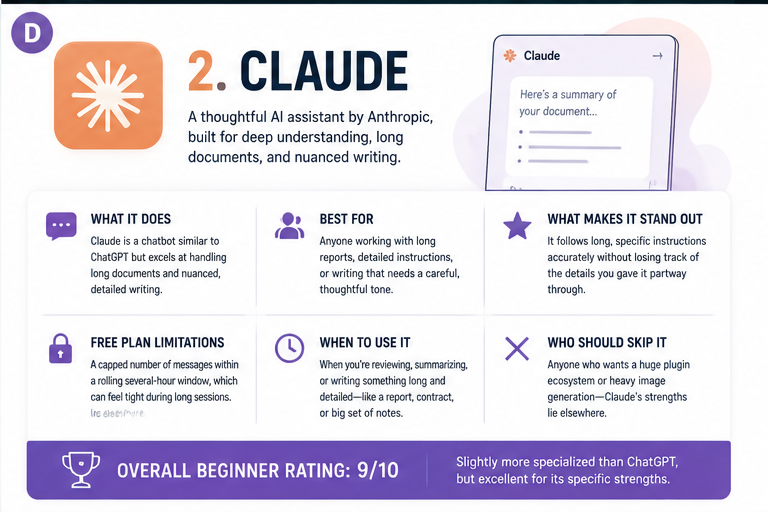
What it does: Claude, made by Anthropic, is a chatbot similar to ChatGPT but generally considered stronger at handling long documents and nuanced, detailed writing.
Best for: Anyone working with long reports, detailed instructions, or writing that needs a careful, thoughtful tone rather than something rushed.
What makes it stand out: It tends to follow long, specific instructions accurately without losing track of the details you gave it partway through. The free plan now includes memory, web search, and file uploads — features that used to require a paid plan.
Free plan limitations: A capped number of messages within a rolling several-hour window, which can feel tight if you're working through something long in one sitting.
When to use it: When you're reviewing, summarizing, or writing something long and detailed — a report, a contract, a big set of notes.
Who should skip it: Anyone who wants a huge plugin ecosystem or heavy image generation — Claude's strengths lie elsewhere.
Overall beginner rating: 9/10 — slightly more specialized than ChatGPT, but excellent for its specific strengths.
3. Google Gemini

What it does: Gemini is Google's AI assistant, built directly into Gmail, Docs, and Sheets, plus available as its own standalone chatbot.
Best for: Anyone who already lives inside Gmail or Google Docs and wants AI help without switching to a separate app.
What makes it stand out: The integration is genuinely convenient — drafting an email reply or summarizing a long thread happens right where you're already working, no copy-pasting required.
Free plan limitations: A daily cap on prompts, plus a smaller context window (how much text it can "read" at once) compared to the paid tier, which can feel restrictive during a long research session.
When to use it: When you're already inside Gmail, Docs, or Sheets and want quick AI help without opening another tab.
Who should skip it: Anyone not using Google's ecosystem day-to-day — the appeal here is mostly the integration, not a standalone advantage.
Overall beginner rating: 8/10 — excellent if you're already a Google household, less compelling otherwise.
4. Perplexity

What it does: Perplexity is an AI search tool. Instead of a list of links like Google, you get a written answer with clickable citations showing exactly where the information came from.
Best for: Students, researchers, and anyone who wants a sourced, verifiable answer instead of digging through ten browser tabs.
What makes it stand out: The citations. Most AI chatbots don't show you where an answer came from by default, and Perplexity is built specifically around that, which makes fact-checking dramatically easier.
Free plan limitations: Unlimited basic search, but the more powerful "Pro Search" mode for complex, multi-step questions is capped at just a handful of uses per day.
When to use it: Any time you need a quick, sourced answer for schoolwork, research, or fact-checking a claim before you repeat it somewhere important.
Who should skip it: Anyone looking for creative writing help or brainstorming — this tool is built for research, not composition.
Overall beginner rating: 8/10 — genuinely excellent at one specific job.
5. Canva AI (Magic Studio)

What it does: Canva is a design tool, and Magic Studio is its bundle of AI features — generating images, writing quick copy, removing backgrounds, and resizing designs, all inside the Canva editor.
Best for: Small business owners, social media managers, and anyone who needs to make visual content without hiring a designer.
What makes it stand out: It combines design and AI in one place, so you're not bouncing between a separate image generator and a separate editing tool.
Free plan limitations: AI features run on a monthly credit system, and free credits run out fast — often within the first few projects of a busy week.
When to use it: When you need a social graphic, a simple flyer, or a quick visual edit and don't have design software or a designer on hand.
Who should skip it: Anyone who needs heavy, frequent AI image generation — the free credit pool won't keep up with daily use.
Overall beginner rating: 7/10 — very useful, but the credit limits show up faster than you'd expect.
6. Microsoft Copilot

What it does: Copilot is Microsoft's AI assistant. The free Copilot Chat app works as a standalone chatbot, while deeper AI features inside Word, Excel, and PowerPoint increasingly depend on your specific Microsoft 365 plan.
Best for: People who already use Microsoft 365 for work and want AI help without leaving that ecosystem.
What makes it stand out: If your job already runs on Word, Excel, and Outlook, having AI assistance show up in the same tools you already use daily removes a lot of app-switching friction.
Free plan limitations: The standalone Copilot Chat app is genuinely free, but the more useful integration directly inside your Office documents has been tightening for unlicensed users — check your specific plan before assuming a feature will be there.
When to use it: For quick chat-based help through the free app, or for light AI assistance inside Office if your workplace's Microsoft 365 plan includes it.
Who should skip it: Anyone not using Microsoft 365 regularly — there's little reason to adopt Copilot specifically without that ecosystem.
Overall beginner rating: 6/10 — useful for the right person, confusing for everyone else due to shifting free-vs-paid lines.
7. Grammarly

What it does: Grammarly checks your writing for grammar, spelling, punctuation, and tone as you type, across your browser, desktop, and mobile keyboard, with a limited AI writing assistant built in.
Best for: Anyone who writes regularly for work or school and wants an extra layer of polish before hitting send.
What makes it stand out: It works almost everywhere you write — browser, Google Docs, Microsoft Office, email — and the core grammar and tone detection is genuinely strong.
Free plan limitations: The AI writing features (rewrites, tone adjustment, generating new text) are capped at a small number of uses per month; the core grammar and spelling check, though, is unlimited.
When to use it: As a daily habit for anything you're sending to someone else — emails, reports, cover letters, essays.
Who should skip it: Anyone writing in a language other than English, since Grammarly is English-only.
Overall beginner rating: 8/10 — one of the easiest tools on this list to build into a daily habit.
8. Notion AI

What it does: Notion is a flexible note-taking and workspace app, and Notion AI adds writing help, summarization, and Q&A features inside your pages.
Best for: People who already use Notion for notes, project planning, or a personal wiki and want light AI help in that same space.
What makes it stand out: If you're already organizing your life or work in Notion, having AI assistance built into the same pages avoids constantly switching apps.
Free plan limitations: This is the biggest caveat on this entire list — full, ongoing Notion AI access now requires the paid Business plan. Free and Plus users only get a limited trial, not continued access.
When to use it: Honestly, mostly if you're already a committed Notion user and are willing to pay for the Business plan specifically for AI features.
Who should skip it: Anyone hoping for free, ongoing AI access — you won't find it here anymore. Use ChatGPT or Claude instead if that's what you're after.
Overall beginner rating: 5/10 — great app, but the free AI access has been scaled back significantly.
9. Otter.ai

What it does: Otter.ai transcribes meetings and conversations in real time and generates summaries, including key points and action items.
Best for: Anyone who sits through a lot of meetings and wants notes without having to type while listening.
What makes it stand out: It integrates directly with Zoom, Google Meet, and Microsoft Teams, joining your calls automatically and producing a clean summary afterward without any manual effort during the meeting itself.
Free plan limitations: A monthly cap on transcription minutes, which is enough for occasional use but tight if you're in back-to-back meetings all week.
When to use it: Any recurring meeting where you need accurate notes but want to actually pay attention instead of typing the whole time.
Who should skip it: Anyone who rarely attends virtual meetings — this tool is built specifically around that use case.
Overall beginner rating: 8/10 — a genuine time-saver for anyone in regular meetings.
10. ElevenLabs

What it does: ElevenLabs converts text into realistic, natural-sounding speech, and can also clone or generate custom voices.
Best for: Content creators, podcasters, and anyone making videos or audio content who needs voiceover without recording their own narration.
What makes it stand out: The voice quality is genuinely impressive compared to older text-to-speech tools, and it supports a wide range of languages and accents.
Free plan limitations: This is a real constraint worth knowing upfront — the free plan gives you 10,000 characters per month, which works out to roughly 10 minutes of finished audio. A single YouTube video script can eat most of that in one go, and free-plan audio also requires attribution to ElevenLabs if used publicly.
When to use it: For occasional voiceover needs, testing whether AI voice quality meets your standards, or narrating short-form content.
Who should skip it: Anyone producing audio or video content weekly — the free tier simply won't keep pace, and you'll want to budget for the Starter plan fairly quickly.
Overall beginner rating: 7/10 — excellent quality, but the free tier is genuinely more of a trial than a weekly tool for regular creators.
Which Tool Should You Start With?

There's no single right answer here — it depends on what you actually spend your time doing. Here's a quick guide based on common situations.
"I write a lot." Start with Claude or ChatGPT for drafting, and add Grammarly for a final polish pass before sending anything important.
"I'm in school." Perplexity for research with sources, and ChatGPT or Claude for turning notes into study guides or practice questions.
"I own a small business." Canva AI for marketing visuals, paired with ChatGPT or Claude for writing product descriptions and planning campaigns.
"I create content." ElevenLabs for voiceover, Canva AI for visuals, and ChatGPT or Claude for scripting and captions.
"I work in Microsoft Office all day." Microsoft Copilot, but check your workplace's specific Microsoft 365 plan first to know what's actually included.
"I use Google Workspace." Gemini, since it's already built into the tools you're using.
"I sit in a lot of meetings." Otter.ai, hands down — it solves a specific, recurring problem better than a general chatbot would.
"I just want one tool and don't want to overthink it." ChatGPT or Claude. Both are flexible enough to cover the vast majority of everyday tasks, and you can always add a second, more specialized tool later.
The Biggest Mistake Beginners Make

Here's something worth saying plainly: most beginners install way too many AI tools way too fast.
It happens for an understandable reason. You read an article like this one, every tool sounds useful, and it feels efficient to just sign up for all ten at once. In practice, this almost always backfires. You end up with ten half-learned tools instead of one or two you actually know how to use well, and the mental overhead of remembering which tool does what ends up canceling out the time you were trying to save.
The better approach: pick one tool from the list above based on your actual weekly tasks. Use it consistently for two weeks. Notice which specific tasks it genuinely speeds up. Only then consider adding a second tool — and only if there's a real, specific gap the first tool isn't covering.
Mastering one or two tools well will save you more time, long-term, than having a dozen apps installed that you open once and forget.
Comparison Table
Tool | Free Plan | Best Use | Ease of Learning | Mobile App | Web Access | Best for Beginners |
ChatGPT | Generous, with message caps | General all-purpose help | Very easy | Yes | Yes | ★★★★★ |
Claude | Generous, rolling message limits | Long writing, detailed instructions | Very easy | Yes | Yes | ★★★★★ |
Google Gemini | Solid, daily prompt caps | Gmail/Docs integration | Very easy | Yes | Yes | ★★★★☆ |
Perplexity | Unlimited basic search | Research with sources | Very easy | Yes | Yes | ★★★★★ |
Canva AI | Useful, credits run out fast | Visual/social content | Easy | Yes | Yes | ★★★★☆ |
Microsoft Copilot | Free chat; deeper Office AI often paid | Microsoft 365 users | Easy | Yes | Yes | ★★★☆☆ |
Grammarly | Unlimited grammar check, capped AI | Everyday writing polish | Very easy | Yes | Yes | ★★★★☆ |
Notion AI | Limited trial only | Notion users specifically | Easy | Yes | Yes | ★★★☆☆ |
Capped monthly minutes | Meeting transcription | Easy | Yes | Yes | ★★★★☆ | |
ElevenLabs | 10,000 characters/month | AI voiceover | Easy | Limited | Yes | ★★★☆☆ |
Frequently Asked Questions

Are free AI tools actually good, or are they just a trial to get you to pay? Most of the tools on this list are genuinely usable for real, ongoing work on their free plans — not just a five-minute demo. The main exception on this list is Notion AI, where free access is now largely limited to a trial.
Do I need to pay for AI? Not to get started. Every tool here has a free plan worth using. Paying only makes sense once you consistently hit a specific limit that's actually slowing down your work.
Which AI is best for students? Perplexity for research with citations, paired with ChatGPT or Claude for turning notes into study guides and practice questions.
Can I use more than one AI tool at the same time? Yes, and plenty of people do once they're comfortable with the basics. Using different tools for their specific strengths, like Perplexity for research and Claude for writing, is a completely normal way to work.
Which one is easiest for a total beginner? ChatGPT and Claude are both easy entry points — no setup beyond creating an account, and you type in plain English from the very first message.
Which AI writes best? Claude and ChatGPT are both strong for general writing. Claude tends to edge ahead specifically for long, detailed, or nuanced writing tasks, while ChatGPT is a flexible all-rounder.
Which AI researches best? Perplexity, specifically because it shows sources alongside its answers, which makes fact-checking dramatically easier than a general chatbot that doesn't cite anything.
Which AI makes images? Canva AI is the most beginner-friendly option on this list for visual content, since it combines image generation with an actual design editor rather than just producing a raw image file.
Is it safe to use these tools for work information? Check your employer's specific AI policy first. Most of these tools don't use your conversations to train their models on paid plans by default, but rules on what can be shared vary by workplace, so it's worth confirming before pasting anything confidential.
How much time will these tools actually save me? It depends entirely on how consistently you use them. A tool used occasionally saves you a few minutes here and there. A tool built into a genuine weekly habit — like Otter.ai for every meeting, or Grammarly for every email — adds up to real, noticeable time savings within a month.
Conclusion

You don't need ten AI tools installed on your phone to get real value out of AI. You need one, maybe two, used consistently enough that they actually become part of how you work.
Look back through the "Which Tool Should You Start With" section, pick the one that matches your actual week, and give it two weeks of real use before adding anything else. That's genuinely the fastest path to feeling confident with AI — not trying everything at once, but getting comfortable with one thing first.
Start this week. Pick one tool from this list, open it, and try it on something you already need to do today.



Comments