


The Beginner's Guide to AI Image Generation (2026)


If you've scrolled through social media, sat through a work presentation, or watched a YouTube video lately, you've probably seen an AI-generated image without even realizing it. That dreamy fantasy landscape a coworker used for a slide background.
The polished product mockup in a small business's Instagram post. The eye-catching thumbnail on a video you clicked because it looked so good.
AI image generation has quietly become one of the most useful tools for everyday people — not just professional designers. Marketers use it to skip expensive stock photo subscriptions. Teachers use it to make worksheets more engaging. Bloggers use it to create featured images without touching a camera. YouTubers use it to design thumbnails in minutes instead of hours.
Here's the good part: you don't need any artistic talent to do this. You don't need to know how to draw, use Photoshop, or understand design theory. If you can type a sentence describing what you want to see, you can generate an image.
This guide walks you through everything a complete beginner needs to know — what AI image generation actually is, how it works, which tools are worth using, how to write prompts that actually get you good results, and the common mistakes that trip up almost everyone in their first week.
No jargon. No hype. Just a clear starting point.
Table of Contents
1. What Is AI Image Generation?

AI image generation is when you type a description — called a "prompt" — and an AI tool creates a brand-new image based on that description. You're not searching a database of existing photos. You're not editing a picture that already exists. The AI is generating something that never existed before, pixel by pixel, based purely on your words.
Think of it less like a search engine and more like describing a scene to an illustrator over the phone. The illustrator has never seen the exact image you're picturing in your head, but they've studied millions of pictures, paintings, and photographs over their career. Based on your description, they draw their best interpretation. That's essentially what's happening — except the "illustrator" is a computer model, and it can produce a result in seconds.
Why AI doesn't "copy and paste" images
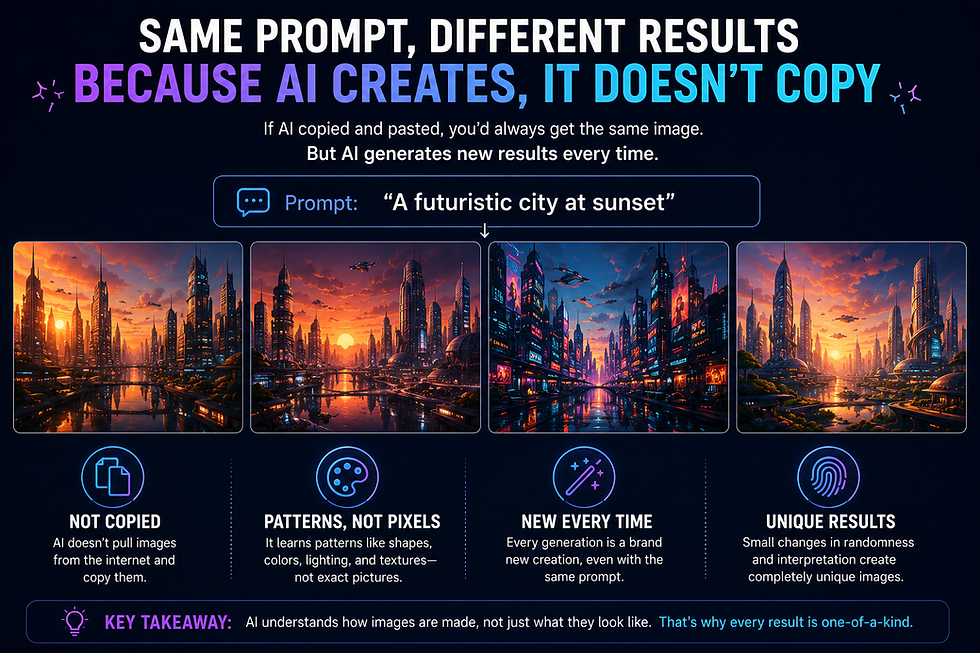
This trips up a lot of beginners, so it's worth explaining clearly. When you ask an AI tool for "a golden retriever puppy sitting in autumn leaves," it isn't finding a photo of a golden retriever and pasting leaves around it. It has learned general patterns — what fur texture looks like, how light falls on a dog's face, what leaves look like when they're piled up, how shadows behave in outdoor light — and it combines all of that learned knowledge into a completely new image.
This is done through something called a diffusion model. You don't need to understand the math behind it, but the basic idea is genuinely simple:
The AI starts with a canvas of random visual "noise" — imagine TV static — and then gradually refines that noise, step by step, into a coherent picture that matches your prompt. It's a bit like a sculptor starting with a rough block of marble and slowly chiseling away until a recognizable figure emerges.
Each step nudges the image closer to what your words described, until what started as random static becomes a puppy sitting in a pile of leaves.
Why results vary every time

Because the process starts from random noise, no two generations are ever identical — even with the exact same prompt. This is actually useful. If your first result isn't quite right, generating again often gives you a completely different (and sometimes better) interpretation, without changing a single word of your prompt.
Beginner Tip: Don't treat your first result as final. Most people who are happy with their AI images generated at least 3–5 versions before picking their favorite.
2. How AI Image Generation Actually Works
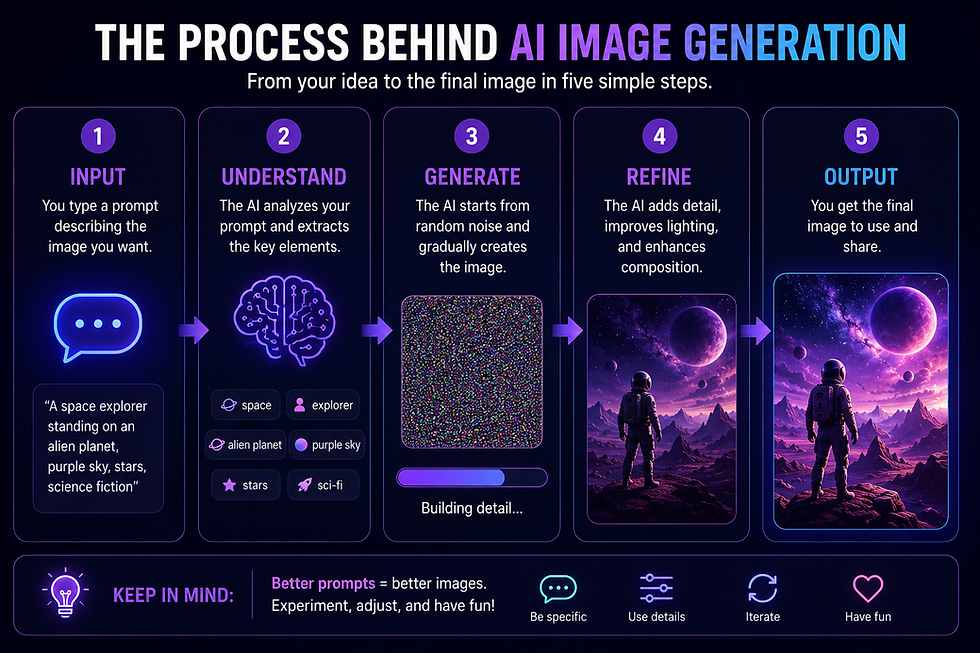
You don't need to understand the technical side to use these tools well, but understanding the ingredients that shape your final image will save you hours of frustration.
The prompt

Your prompt is the instruction you give the AI. It's the single biggest factor in how your image turns out. A vague prompt gets a vague, generic result. A specific prompt gets a specific, intentional result.
Style
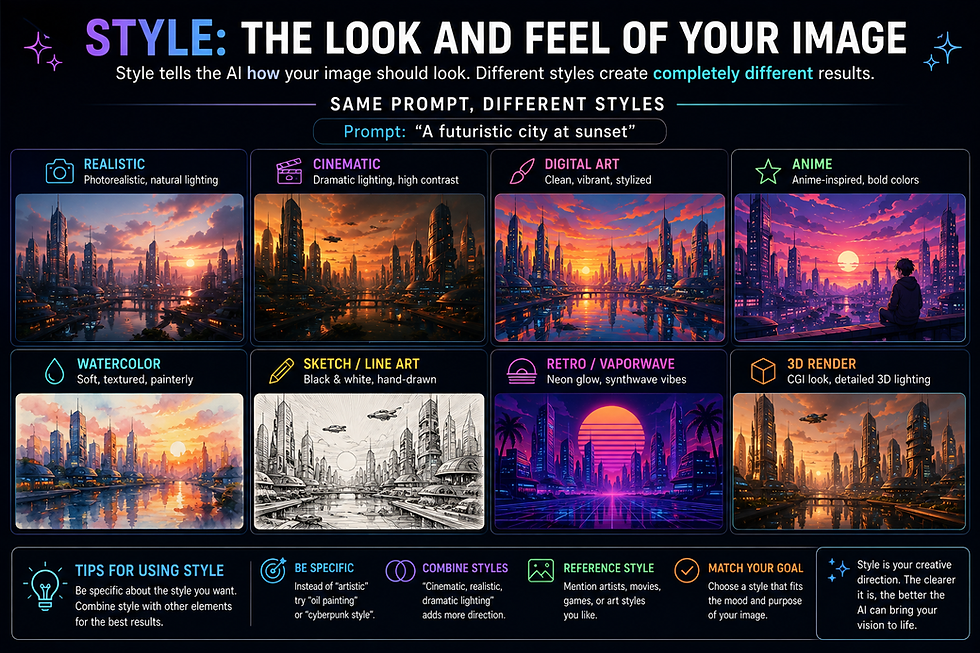
Style tells the AI what visual "language" to use — photorealistic, watercolor painting, 3D animated, flat vector illustration, comic book, oil painting, and so on. Without a style, most tools default to a fairly generic digital-art look.
Lighting

Lighting words dramatically change the mood of an image. "Soft morning light," "dramatic studio lighting," and "moody candlelight" will produce three very different images from the same subject.
Composition

Composition refers to how elements are arranged in the frame — close-up, wide shot, centered subject, rule-of-thirds, subject on the left with empty space on the right for text (useful for thumbnails and headers).
Camera angle

Terms borrowed from photography — "eye-level shot," "aerial view," "low angle looking up" — help the AI understand the perspective you want, not just the subject.
Reference images
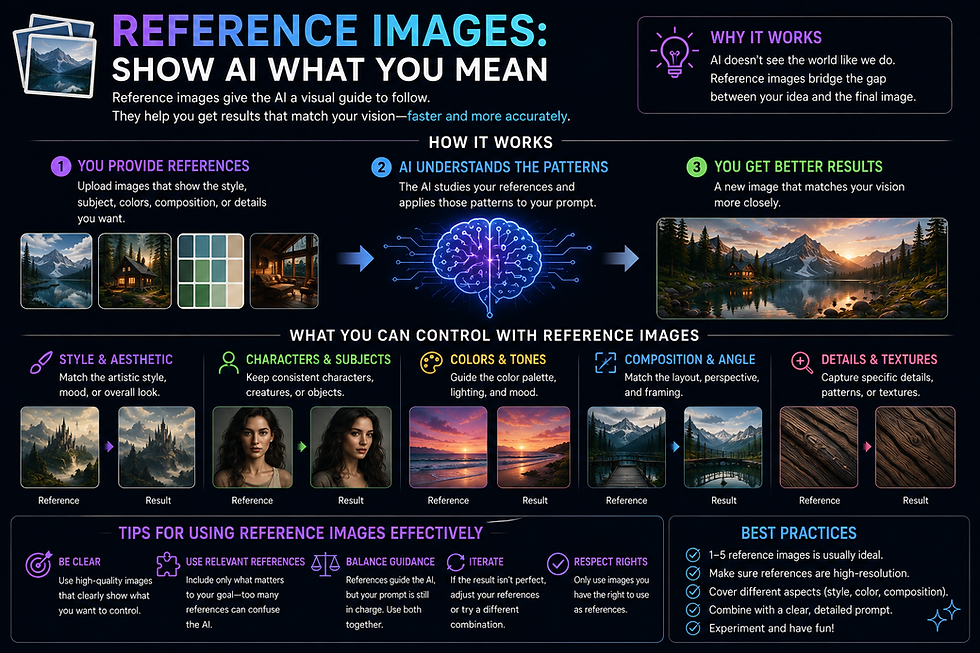
Many modern tools let you upload a reference image alongside your prompt. This can be used to match a color palette, a pose, a layout, or even a specific character's appearance across multiple images. This is one of the biggest quality-of-life improvements in newer AI tools compared to a couple of years ago.
Iteration
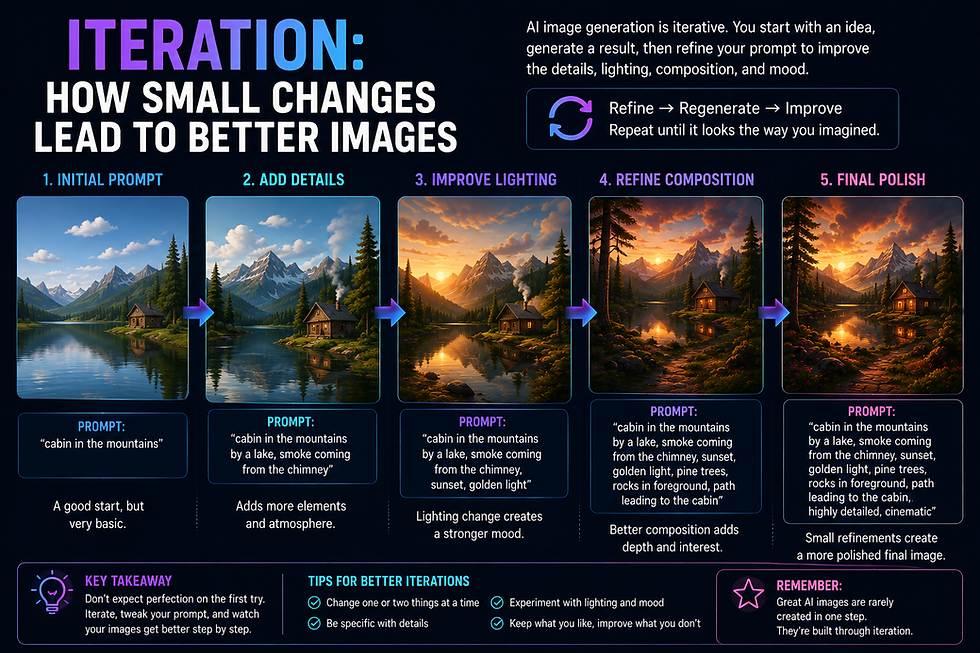
Almost nobody gets a perfect image on the first try, and that's normal. Iteration just means generating again, tweaking a word or two, or asking the tool to adjust one specific part of the image (like "make the background darker" or "change the shirt to blue"). Treat your first prompt as a rough draft, not a final exam.
Quick Takeaway: Prompt + Style + Lighting + Composition + Angle = your final image. Change any one ingredient, and the result changes too.
3. The Best AI Image Generators (2026)

There isn't one single "best" AI image generator — the right choice depends on what you're making and how much control you want. Here's an honest breakdown of the major players, based on real use cases rather than marketing claims.
ChatGPT (Image Generation)

Best for: general users, illustrations, blog graphics, YouTube thumbnails, quick everyday images
Strengths
Extremely beginner-friendly — you're just chatting, no complicated interface
Excellent at understanding natural, conversational prompts ("make the sky more orange" actually works)
Strong at rendering readable text inside images, which many other tools struggle with
You can go back and forth to refine an image in the same conversation
Weaknesses
Less "artistic" or stylized than tools built specifically for art
Character consistency across multiple images can be inconsistent
No adult or NSFW content under any circumstances — this is a hard restriction, not a setting
Free limitations The free tier allows a small number of image generations per day (typically just a handful, and the exact number shifts based on demand). Paid plans raise that ceiling considerably and unlock higher-quality output.
Who should use it: Complete beginners, bloggers, small business owners, and anyone who wants a single tool that also handles writing, research, and editing — not just images.
Midjourney

Best for: artistic, cinematic, and highly polished images
Strengths
Widely considered the most visually striking output of any mainstream tool
Excellent at lighting, atmosphere, and painterly detail
Strong community and huge library of shared prompts to learn from
Weaknesses
No free trial — you have to pay to try it
Runs on Discord or its own web app, which has a steeper learning curve than a simple chat box
Less precise at following very literal or technical instructions compared to ChatGPT
Public gallery by default; keeping images private requires a higher-tier plan
Best users: Content creators, illustrators, and anyone prioritizing visual "wow factor" over precise control.
Pricing: Plans typically range from around $10/month on the entry tier up to $120/month for heavy, private, high-volume use. Annual billing usually saves around 20%.
Adobe Firefly

Best for: commercial and business use where legal safety matters
Strengths
Trained specifically on licensed and Adobe Stock content, which reduces copyright risk
Automatically attaches content credentials (a kind of digital "nutrition label") showing an image was AI-generated
Reliable, professional-looking output well suited for business graphics
Commercial safety This is Firefly's standout advantage. Adobe offers IP indemnification for paid subscribers, meaning there's added legal protection if you use Firefly images commercially. For businesses that need to cover themselves legally, this matters more than raw visual flair.
Photoshop integration If you already use Photoshop, Firefly's Generative Fill and Generative Expand tools let you extend backgrounds, remove objects, or fill in gaps directly inside your existing photos — genuinely useful for real-world editing, not just generating images from scratch.
Who should use it: Small business owners, marketers, and anyone already inside the Adobe ecosystem who needs commercially safer images.
Google Gemini

Best for: fast, free, everyday image generation
Strengths
One of the most generous free tiers among major tools
Fast, browser-based, no complicated setup
Strong general-purpose image quality for everyday needs
Google ecosystem If you already use Gmail, Google Docs, or Google Slides, Gemini's image generation slots naturally into that workflow — handy for quickly dropping a generated image into a presentation or document without switching apps.
Who should use it: Beginners who want to test the waters without paying anything, and anyone already living inside Google's tools.
Canva AI
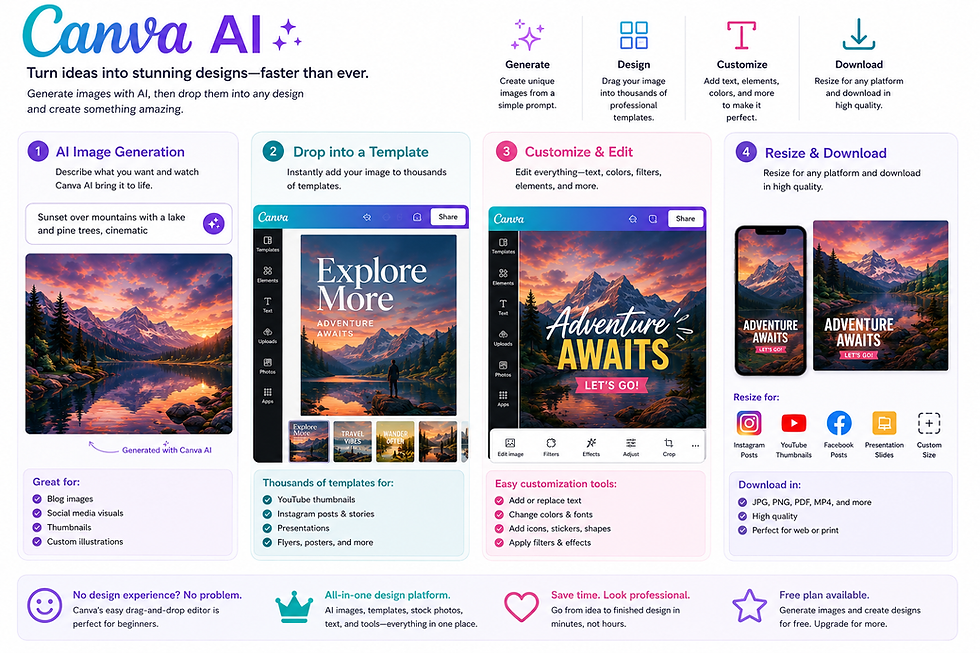
Best for: turning an AI image into a finished design
Strengths
You don't just generate an image — you can drop it straight into a flyer, social post, presentation, or thumbnail template
Extremely approachable interface, even for people who've never designed anything before
Includes tools to swap backgrounds, resize for different platforms, and add text over your generated image
Design workflow This is Canva's real strength: it's less about generating the single best image and more about getting from a blank page to a finished, usable design in one sitting.
Social media graphics If your end goal is an Instagram post, LinkedIn banner, or Pinterest pin — not just a standalone image — Canva AI will likely save you the most time overall.
Who should use it: Social media managers, small business owners, and anyone whose real goal is a finished graphic, not just raw image generation.
Leonardo AI
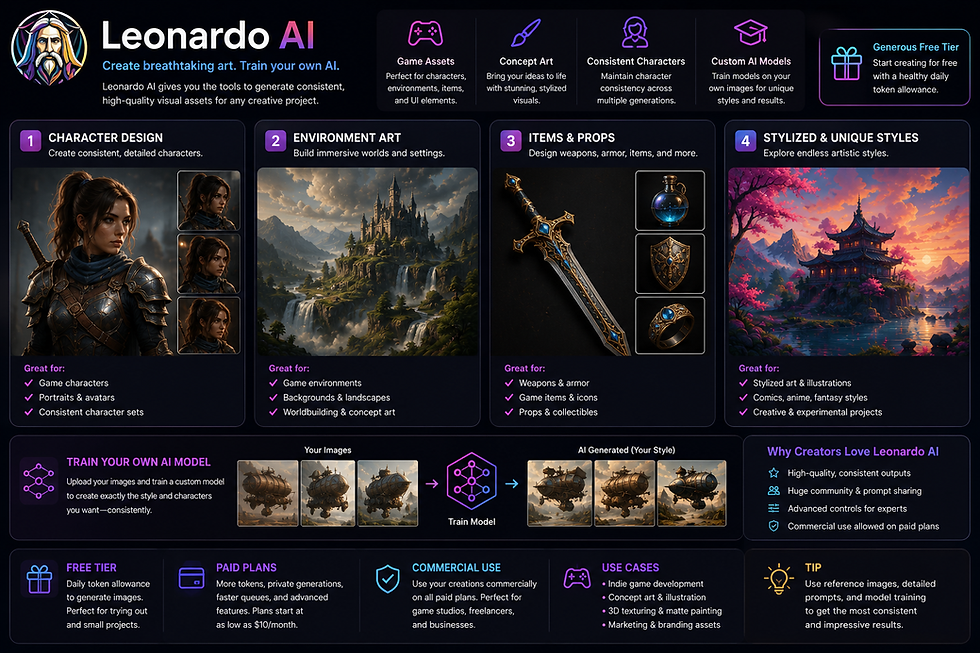
Best for: game assets, concept art, and stylized visuals
Strengths
Strong at consistent characters and stylized art styles
Custom model training lets more advanced users fine-tune the AI on their own reference images
Commercially useful free tier with a healthy daily token allowance
Gaming, concept art, and assets Leonardo has built a reputation specifically among game developers and concept artists for producing usable asset sets — character designs, environment art, item icons — with more stylistic consistency across multiple generations than many general-purpose tools.
Who should use it: Indie game developers, concept artists, and hobbyists who want more creative control without a steep price tag.
Comparison Table
Tool | Best For | Free Option | Starting Paid Price | Learning Curve | Commercial Safety |
ChatGPT | General use, blog/thumbnail images | Yes (limited daily) | ~$20/month | Very Easy | Moderate |
Midjourney | Artistic, cinematic visuals | No | ~$10/month | Moderate | Moderate |
Adobe Firefly | Commercial/business use | Yes (limited credits) | ~$9.99/month | Easy | Strongest |
Google Gemini | Fast, everyday images | Yes (generous) | Pay-per-image or bundled | Very Easy | Moderate |
Canva AI | Finished social/marketing designs | Yes (limited) | ~$15/month | Very Easy | Moderate |
Leonardo AI | Concept art, game assets, stylized work | Yes (daily tokens) | ~$12/month | Moderate | Moderate |
Pricing changes frequently across all of these platforms. Treat the numbers above as a general snapshot rather than a guarantee — always check the tool's own pricing page before subscribing.
4. How to Write Better Image Prompts
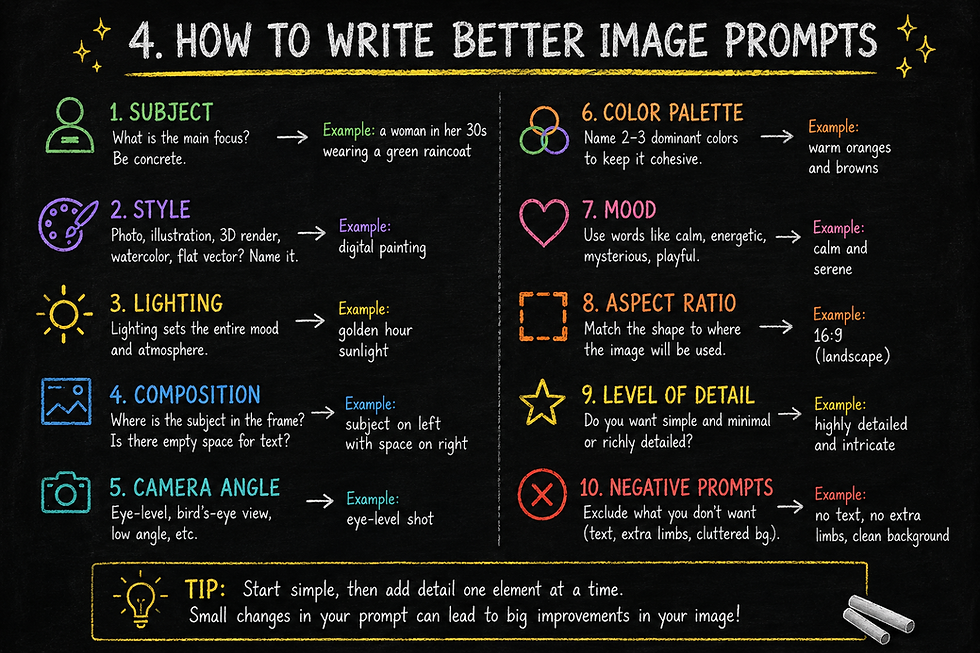
This is the single most valuable skill you'll build. A good prompt isn't longer for the sake of being longer — it's more specific. Here's what to include, one piece at a time.
Subject
What is the main focus? Be concrete: not "a person," but "a woman in her 30s wearing a green raincoat."
Style
Photo? Illustration? 3D render? Watercolor? Flat vector? Name it directly.
Lighting
"Golden hour sunlight," "soft overcast daylight," "neon nighttime lighting" — lighting sets the entire mood.
Composition
Where is the subject in the frame? Is there empty space for text? Is it a close-up or a wide shot?
Camera angle
Eye-level, bird's-eye view, low angle — this shapes how "dramatic" or "natural" an image feels.
Color palette
Naming 2–3 dominant colors ("warm oranges and browns" or "cool blues and teals") keeps the AI from picking random, mismatched colors.
Mood
Words like "calm," "energetic," "mysterious," or "playful" guide tone in a way that's hard to achieve through visual instructions alone.
Aspect ratio
Match the shape to where the image will actually be used — square for Instagram, 16:9 for YouTube thumbnails and presentations, vertical for Pinterest and Stories.
Level of detail
Do you want something clean and minimal, or richly detailed? Say so — "simple, minimal illustration" vs. "highly detailed, intricate."
Negative prompts
Some tools let you specify what you don't want — for example, excluding text, extra limbs, or a busy background. This isn't available everywhere, but it's worth using when it is.
Before-and-after examples

Vague prompt:
"A coffee shop"
Result: A generic, forgettable coffee shop image — could be anywhere, any style, any mood.
Improved prompt:
"A cozy independent coffee shop interior, warm afternoon sunlight through large windows, wooden tables, steam rising from a ceramic mug in the foreground, shallow depth of field, photorealistic style, warm color palette"
Result: A specific, atmospheric, usable image that actually matches what most people picture when they imagine a "cozy coffee shop."
Vague prompt:
"A logo for my bakery"
Improved prompt:
"A minimalist logo for a small bakery called 'Wheat & Wild,' flat vector illustration, simple wheat stalk icon, warm brown and cream color palette, clean modern typography, white background"
Pro Tip: Write your prompt like you're describing a photo to a friend who can't see it. The more clearly they could picture it in their head, the better the AI's result will be.
5. Beginner Mistakes to Avoid
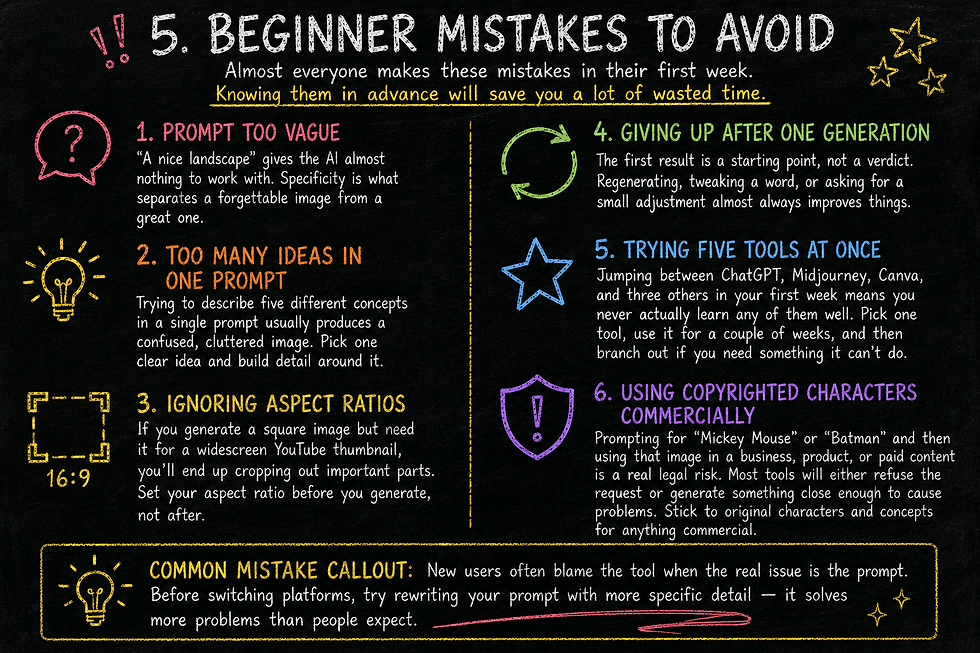
Almost everyone makes these mistakes in their first week. Knowing them in advance will save you a lot of wasted time.
Prompt too vague "A nice landscape" gives the AI almost nothing to work with. Specificity is what separates a forgettable image from a great one.
Too many ideas crammed into one prompt Trying to describe five different concepts in a single prompt usually produces a confused, cluttered image. Pick one clear idea and build detail around it.
Ignoring aspect ratios If you generate a square image but need it for a widescreen YouTube thumbnail, you'll end up cropping out important parts. Set your aspect ratio before you generate, not after.
Giving up after one generation The first result is a starting point, not a verdict. Regenerating, tweaking a word, or asking for a small adjustment almost always improves things.
Trying five tools at once Jumping between ChatGPT, Midjourney, Canva, and three others in your first week means you never actually learn any of them well. Pick one tool, use it for a couple of weeks, and then branch out if you need something it can't do.
Using copyrighted characters commercially Prompting for "Mickey Mouse" or "Batman" and then using that image in a business, product, or paid content is a real legal risk. Most tools will either refuse the request or generate something close enough to cause problems. Stick to original characters and concepts for anything commercial.
Common Mistake Callout: New users often blame the tool when the real issue is the prompt. Before switching platforms, try rewriting your prompt with more specific detail — it solves more problems than people expect.
6. Practical Everyday Uses
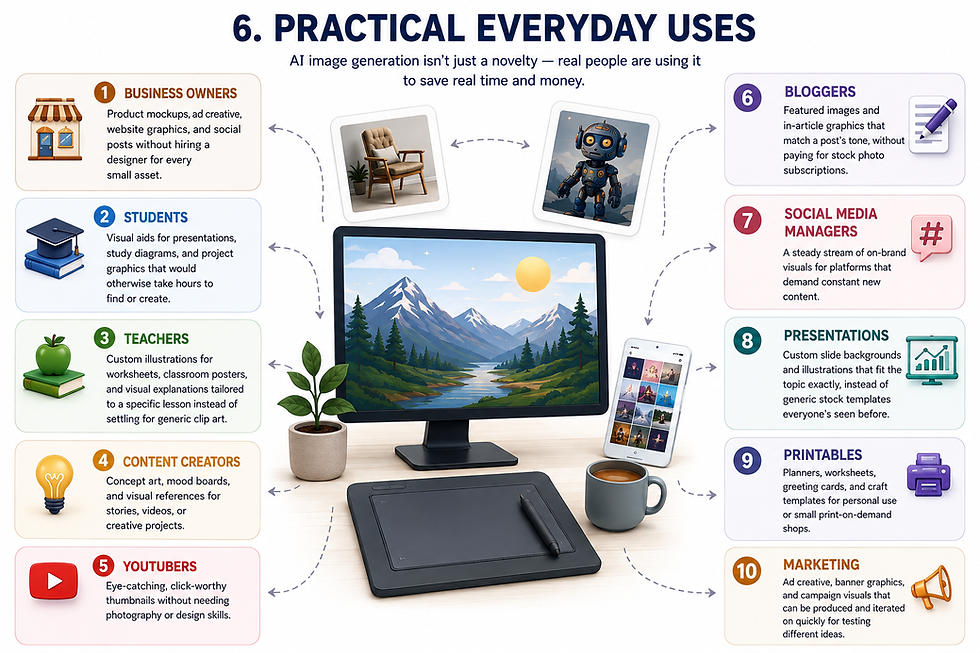
AI image generation isn't just a novelty — real people are using it to save real time and money.
Business owners — Product mockups, ad creative, website graphics, and social posts without hiring a designer for every small asset.
Students — Visual aids for presentations, study diagrams, and project graphics that would otherwise take hours to find or create.
Teachers — Custom illustrations for worksheets, classroom posters, and visual explanations tailored to a specific lesson instead of settling for generic clip art.
Content creators — Concept art, mood boards, and visual references for stories, videos, or creative projects.
YouTubers — Eye-catching, click-worthy thumbnails without needing photography or design skills.
Bloggers — Featured images and in-article graphics that match a post's tone, without paying for stock photo subscriptions.
Social media managers — A steady stream of on-brand visuals for platforms that demand constant new content.
Presentations — Custom slide backgrounds and illustrations that fit the topic exactly, instead of generic stock templates everyone's seen before.
Printables — Planners, worksheets, greeting cards, and craft templates for personal use or small print-on-demand shops.
Marketing — Ad creative, banner graphics, and campaign visuals that can be produced and iterated on quickly for testing different ideas.
7. Frequently Asked Questions

Is AI image generation free? Yes, in a limited way. Most major tools (ChatGPT, Google Gemini, Adobe Firefly, Leonardo AI, Canva) offer a free tier with a daily or monthly cap on how many images you can generate. Midjourney is the main exception — it requires a paid subscription with no free trial.
Can I sell AI-generated images? Generally yes, especially on paid plans, but check the specific tool's commercial-use terms first — they vary. Also avoid using copyrighted characters, logos, or brands in anything you plan to sell.
Who owns AI-generated images? This gets legally complicated. In the United States, purely AI-generated images (with no meaningful human creative input) currently aren't eligible for copyright protection. In practice, "ownership" mostly comes down to the usage rights granted in the tool's terms of service, not traditional copyright law. If ownership matters for your business, it's worth reading the specific platform's terms directly.
Can AI generate logos? It can generate logo concepts and starting points, but most AI-generated logos need some manual cleanup or vectorization before they're truly production-ready, especially for text and fine details.
Can AI edit photos, not just generate new ones? Yes. Many tools now support editing existing images — removing backgrounds, changing specific objects, extending the edges of a photo, or adjusting lighting — in addition to generating images from scratch.
Can AI make YouTube thumbnails? Yes, and it's one of the most popular uses. Set your aspect ratio to widescreen (16:9), leave visual space for text, and consider a tool like Canva AI if you want to add the title text directly onto the image afterward.
Which tool is easiest for a total beginner? ChatGPT and Google Gemini are the most approachable starting points because they work through simple, conversational chat — no complicated interface to learn.
Do I need artistic ability? No. You need the ability to describe what you want in words. That's a very different (and much more learnable) skill than drawing or painting.
8. Final Thoughts

If there's one thing to take away from this guide, it's this: don't chase the "perfect" image on your first try. Every beginner does this, and it's the fastest way to get frustrated and quit.
Instead, pick one tool and actually learn it. Generate images regularly, even for small, low-stakes things — a background for a note-taking app, a birthday card, a random idea that popped into your head. Prompting is a skill, and like any skill, it improves with repetition, not theory.
Most people notice a real, obvious jump in quality after they've created somewhere between 30 and 50 images. Not because the tool changed, but because they got better at describing what they actually wanted — and started catching, on instinct, which words tend to produce which results.
You don't need to master every tool on this list. You just need to start with one, generate more than you think you should, and let your prompting instincts catch up with your imagination.


Comments