


How to Automate Repetitive Tasks with AI (Beginner's Guide)


You copy the same numbers from one spreadsheet into another every Friday. You write nearly the same follow-up email to a dozen different people every week. You rename files by hand, type up meeting notes from memory, and update your CRM one contact at a time. None of it is hard. All of it is exhausting, precisely because it's the same motion, over and over.
Here's the part that's genuinely changed in the last couple of years: most of that work no longer requires a developer, a budget, or a background in tech. A handful of AI-powered tools — many of them free to start — can now read, write, sort, summarize, and route information well enough to take this kind of work off your plate entirely.
This guide is a complete, honest walkthrough of how that actually works. Not the hype version. The real one — what AI automation is, which tasks are genuinely worth automating, which tools to use for what, how to build your first automation from scratch, and what can go wrong if you skip the basics. By the end, you'll have a working plan for automating at least one thing you currently do by hand every week.
Table of Contents
1. What Is AI Automation?

Let's start with a clean, precise definition, since this term gets used loosely.
AI automation is the use of artificial intelligence combined with automated workflows to complete tasks — reading, writing, sorting, summarizing, or deciding — with little or no ongoing human input. It differs from traditional automation because it can interpret unstructured information (like a messy email or a scanned document) rather than only reacting to fixed, exact triggers.
To understand why that distinction matters, it helps to separate three ideas that people often blur together.
Automation is a computer repeating a task for you without you clicking through every step. A recurring calendar reminder is automation. So is a rule that files every email from your accountant into a specific folder.
AI is software that can understand and generate information the way a person might — summarizing a document, drafting a reply, recognizing what's inside an image.
AI automation is what happens when the two are combined: a system that runs on its own and can understand messy, real-world input along the way, not just exact matches.
A beginner-friendly example

Say you get a form submission every time someone requests a quote on your website.
Plain automation would forward that submission to your inbox, every time, exactly the same way — useful, but rigid.
AI on its own could read a submission and draft a reply if you copy and paste it in manually — helpful, but still work for you.
AI automation reads the incoming submission the moment it arrives, drafts a reply based on what the customer actually asked, and puts that draft in your inbox ready for a quick review — no manual copying required.
That third version is the one saving you real time every single day, not just occasionally.
2. Tasks That Are Perfect for AI Automation

Not every task is a good automation candidate. The best ones share three traits: they're repetitive, they follow a fairly predictable pattern, and getting them "mostly right" quickly is more valuable than getting them "perfectly right" slowly. Here's where that applies most often.
Emails — Drafting routine replies, sorting incoming messages by topic or urgency, and flagging anything that needs a human decision.
Meeting notes — Transcribing calls automatically and converting them into a structured summary with action items.
Research — Pulling together comparisons, summarizing long articles, or answering "what's the current state of X" without opening a dozen browser tabs.
Data entry — Moving information between spreadsheets, forms, and databases without manually retyping it.
Scheduling — Finding available meeting times across calendars and sending confirmations automatically.
Customer support — Answering frequently asked questions instantly, while routing anything unusual to a real person.
Blog writing — Turning outlines or rough drafts into structured first drafts ready for human editing.
Social media — Repurposing one piece of content into platform-specific posts and scheduling them in advance.
File organization — Automatically renaming and sorting documents based on their actual content, not just file type.
Report generation — Pulling numbers from a spreadsheet or dashboard into a plain-English weekly or monthly summary.
Lead qualification — Reading incoming inquiries and sorting them by how likely they are to convert, based on criteria you define.
Document summaries — Condensing long contracts, PDFs, or reports into a short brief before anyone has to read the whole thing.
Invoice processing — Reading incoming invoices, extracting key details, and logging them automatically.
Calendar management — Automatically blocking focus time, rescheduling conflicts, and sending reminders.
Featured Snippet — What is workflow automation? Workflow automation is the process of using software to complete a sequence of tasks automatically, based on a defined trigger, without requiring manual action at each step. It typically connects two or more tools so that information moves between them on its own.
3. AI Automation vs. Traditional Automation

This is where a lot of beginners get stuck, so let's be precise about the difference — because it directly affects which tool you should pick.
Traditional automation (rule-based systems)
Featured Snippet — What is rule-based automation? Rule-based automation follows fixed, literal instructions — "if this exact condition happens, do this exact action" — with no ability to interpret meaning or handle variation. It's reliable for highly predictable tasks, but breaks easily when the input changes even slightly.
This is the oldest form of automation, and it still has real advantages: it's fast, cheap, predictable, and easy to troubleshoot when something goes wrong, because there's no "interpretation" step to second-guess.
The limitation shows up the moment input becomes inconsistent. A rule that files emails based on an exact subject line will silently fail the moment someone phrases their subject line differently.
AI-powered workflows

AI-powered automation adds an understanding layer somewhere in that sequence — the system reads the actual content of a message, document, or request, and makes a judgment call based on meaning rather than an exact match.
This is genuinely more flexible and better suited to real-world, messy input. It's also less predictable in a specific way: because AI is making an interpretive judgment rather than following a fixed rule, it can occasionally misread something a rigid rule never would have gotten wrong — which is exactly why human review still matters (more on that in the mistakes section).
Featured Snippet — What is an AI workflow? An AI workflow is a defined sequence of steps — trigger, action, and at least one AI-powered step — that automates a task from start to finish. It's the structure that connects a triggering event to an AI tool's understanding or writing capability and then to a final action, like sending, saving, or notifying.
Comparison table
Traditional Automation | AI-Powered Automation | |
How it decides | Fixed, literal rules | Reads and interprets meaning |
Handles messy/inconsistent input | Poorly | Well |
Predictability | Very high | High, but not absolute |
Setup complexity for beginners | Low | Low to moderate |
Best for | Exact, repetitive, low-variation tasks | Tasks involving language, judgment, or unstructured data |
Main risk | Breaks silently on unexpected input | Can misinterpret ambiguous input |
Example | Auto-file emails from a specific sender | Auto-categorize emails by what they're actually about |
Pro Tip: Most real-world workflows use both. A trigger and a basic action (traditional automation) with an AI step somewhere in the middle (reading, summarizing, or drafting) is the most common — and most reliable — beginner setup.
4. Beginner-Friendly AI Automation Tools
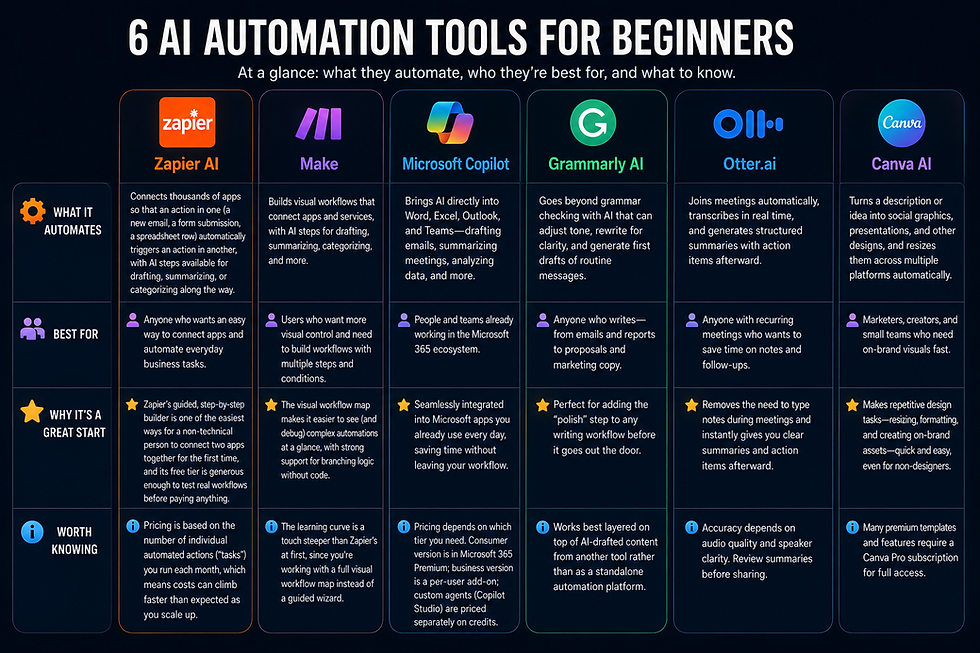
There's no single best tool here — the right one depends on the type of task. Below is an honest breakdown, organized by what each tool is actually good at, not just what it claims to do.
Featured Snippet — What is an AI assistant? An AI assistant is a tool like ChatGPT or Claude that understands natural-language instructions and performs tasks such as writing, summarizing, or answering questions. On its own, it typically requires a manual prompt each time; paired with a workflow automation tool, it becomes part of a fully automated process.

Best uses: Drafting text, brainstorming, quick research, summarizing pasted content, and acting as the "thinking" layer inside a larger automation.
Pros
Extremely approachable, conversational interface
Strong at understanding natural, informal instructions
Increasingly capable of scheduled, recurring tasks directly inside the chat interface
Cons
On its own, it's not a true automation platform — it doesn't watch your inbox or run on a schedule the way a dedicated tool like Zapier does, unless paired with one
Best used as one piece of a workflow, not the entire workflow

Best uses: Longer, more nuanced writing tasks, document summarization, and workflows where accuracy and careful reasoning matter more than speed.
Pros
Handles long documents well, which makes it a strong fit for summarizing contracts, reports, or research
Tends to produce more natural, less repetitive writing for longer content
Can connect to external tools and data sources through Model Context Protocol (MCP), letting it interact with services like Gmail, Google Drive, or Slack when set up
Cons
Like ChatGPT, it's the "understanding and writing" layer, not a scheduling or triggering system on its own — pair it with a workflow tool for anything that needs to run automatically

What it automates: Connects thousands of apps so that an action in one (a new email, a form submission, a spreadsheet row) automatically triggers an action in another, with AI steps available for drafting, summarizing, or categorizing along the way.
Popular integrations: Gmail, Google Sheets, Slack, HubSpot, Notion, and most mainstream business apps.
Why it's a common starting point: Zapier's guided, step-by-step builder is genuinely one of the easiest ways for a non-technical person to connect two apps together for the first time, and its free tier is generous enough to test real workflows before paying anything.
Worth knowing: Pricing is based on the number of individual automated actions ("tasks") you run each month, which means costs can climb faster than expected once you're running several automations regularly — worth watching if you scale up.

Visual workflows: Instead of a guided wizard, Make shows your entire automation as a visual map of connected steps, which makes it easier to see (and debug) more complex workflows at a glance.
Automation builder: Strong support for branching logic — "if this happens, do A; if that happens, do B" — without needing to write code.
Best for: Beginners who are comfortable with a slightly more visual, hands-on setup, and anyone building workflows with more than two or three steps.
Worth knowing: The learning curve is a touch steeper than Zapier's at first, simply because you're looking at a full workflow map rather than a single guided step.

Office workflows: If your work already lives inside Word, Excel, Outlook, and Teams, Copilot brings AI directly into those apps — drafting emails in Outlook, summarizing long Teams meetings with action items, and helping build formulas or summarize data in Excel.
Worth knowing: Copilot's pricing and structure genuinely depend on which tier you need. The consumer version is bundled into a Microsoft 365 Premium subscription, while the business version is a separate per-user add-on on top of an existing Microsoft 365 plan — and building fully custom automated agents (through Copilot Studio) is priced separately again, on a credit system. It's a strong choice specifically for people already committed to the Microsoft ecosystem, less so as a standalone pick.
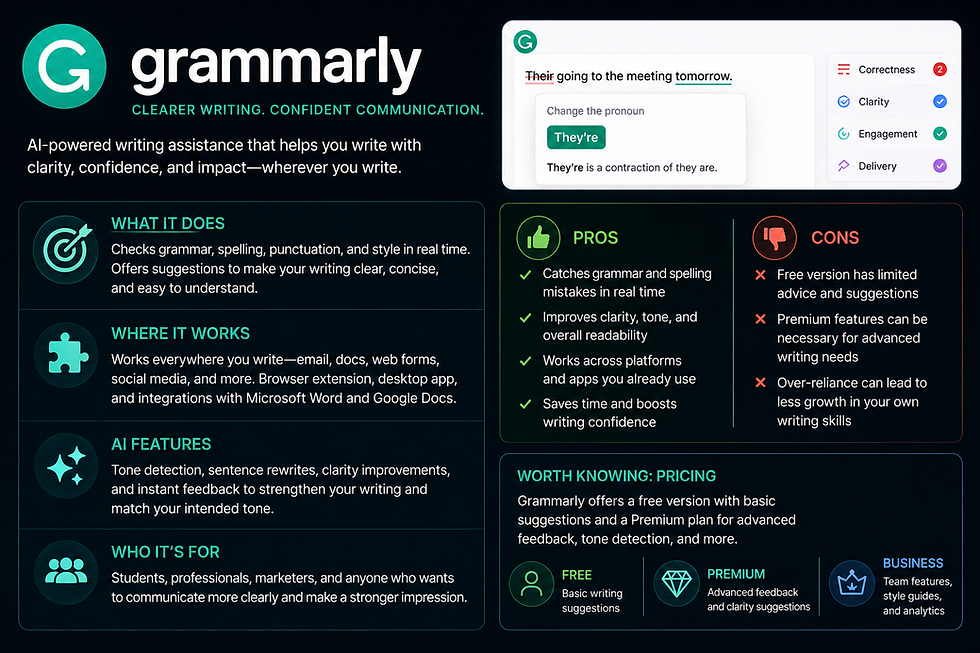
Writing automation: Beyond basic grammar checking, Grammarly's AI features can adjust tone, rewrite for clarity, and generate first drafts of routine messages, which is useful layered on top of AI-drafted content from another tool.
Best for: Automating the "polish" step of any writing workflow — a quick pass after AI (or you) drafts something, before it goes out the door.

Meeting summaries: Joins calls automatically, transcribes them in real time, and generates a structured summary with action items afterward — removing the need to type notes during a meeting at all.
Best for: Anyone with a recurring meeting load who currently spends time after each call writing up notes and follow-ups by hand.

Design workflows: Turns a description or rough idea into a usable social graphic, presentation, or marketing asset, and lets you resize the same design across multiple platforms automatically.
Best for: Automating the repetitive parts of visual content — resizing, reformatting, and producing on-brand graphics quickly, especially for social media and marketing tasks.
Quick comparison
Tool | Category | Beginner Difficulty | Free Option |
ChatGPT | Writing / thinking layer | Very Easy | Yes |
Claude | Writing / document analysis | Very Easy | Yes |
Zapier AI | App-to-app workflow builder | Easy | Yes |
Make | Visual workflow builder | Easy–Moderate | Yes |
Microsoft Copilot | Office-embedded AI | Moderate | Limited |
Grammarly AI | Writing polish | Very Easy | Yes |
Meeting transcription | Very Easy | Yes | |
Canva AI | Design automation | Very Easy | Yes |
5. Step-by-Step: Build Your First AI Automation
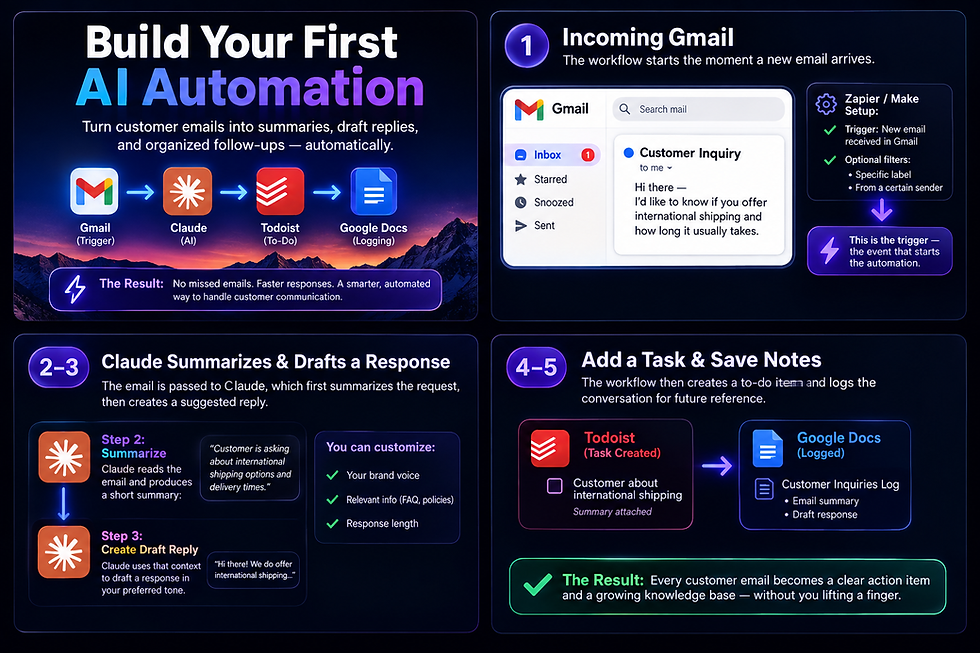
Let's make this concrete with a real, buildable example — one that combines several tools the way an actual workflow would.
The goal: An incoming customer email gets read, summarized, drafted into a response, added to your to-do list, and logged — automatically.
Step 1: Incoming Gmail

The workflow starts the moment a new email arrives in a specific inbox or folder. This is your trigger — the event that kicks everything else off. In a tool like Zapier or Make, you'd set this as "new email received in Gmail," optionally filtered to a specific label or sender pattern.
Step 2: Claude summarizes the email

Once triggered, the email's content gets passed to an AI step — in this case, Claude reads the message and produces a short summary: what the customer is asking, and anything urgent or unusual about the request.
Step 3: Claude creates a draft response

Using that same context, a second AI step drafts a suggested reply, based on your tone preferences and any relevant background information you've provided (like a product FAQ or your usual response templates).
Step 4: Adds a task to your to-do app

The workflow automatically creates a task in whatever to-do app you use, so the email doesn't just disappear into an inbox — it becomes a visible action item with the summary attached, ready for a quick review.
Step 5: Saves notes to Google Docs

Finally, the summary and draft get logged into a running document — useful for tracking customer patterns over time, or for anyone else on your team who needs visibility into what's been coming in.
Why this example matters
Notice what didn't happen: the AI didn't send anything on its own. It drafted, summarized, and organized — but a human still reviews and sends the final reply. That's intentional, and it's the same principle worth applying to almost every beginner automation: let AI handle the repetitive first draft, and keep a human in the loop for anything that goes out the door.
Quick Takeaway: A good first automation doesn't need to be fully hands-off. It needs to remove the repetitive part of the work while keeping you in control of anything that matters.
6. Five Real Automation Examples
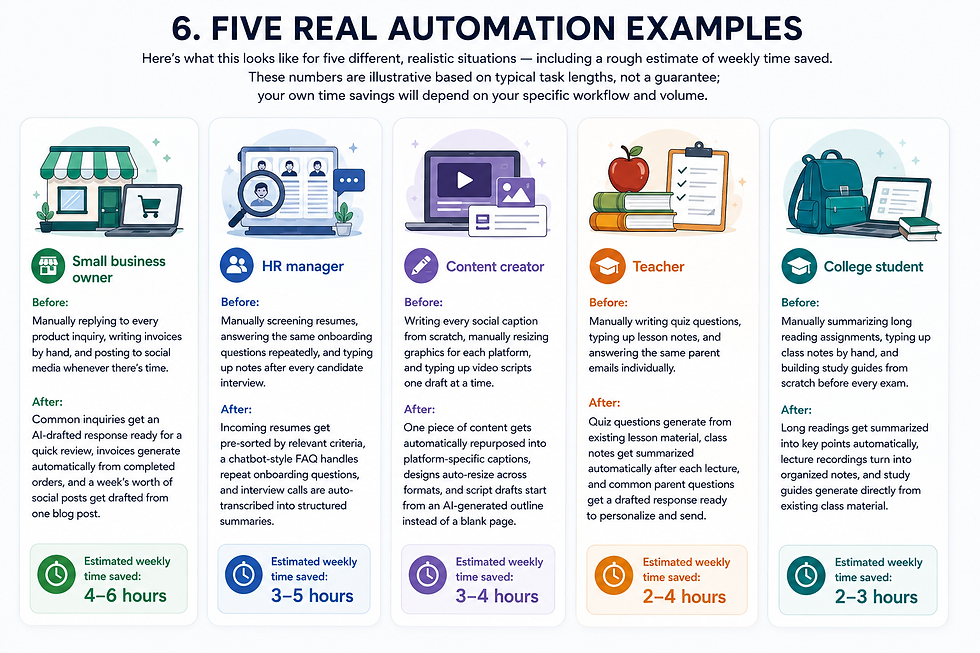
Here's what this looks like for five different, realistic situations — including a rough estimate of weekly time saved. These numbers are illustrative based on typical task lengths, not a guarantee; your own time savings will depend on your specific workflow and volume.
Small business owner

Before: Manually replying to every product inquiry, writing invoices by hand, and posting to social media whenever there's time.
After: Common inquiries get an AI-drafted response ready for a quick review, invoices generate automatically from completed orders, and a week's worth of social posts get drafted from one blog post.
Estimated weekly time saved: 4–6 hours.
HR manager

Before: Manually screening resumes, answering the same onboarding questions repeatedly, and typing up notes after every candidate interview.
After: Incoming resumes get pre-sorted by relevant criteria, a chatbot-style FAQ handles repeat onboarding questions, and interview calls are auto-transcribed into structured summaries.
Estimated weekly time saved: 3–5 hours.
Content creator

Before: Writing every social caption from scratch, manually resizing graphics for each platform, and typing up video scripts one draft at a time.
After: One piece of content gets automatically repurposed into platform-specific captions, designs auto-resize across formats, and script drafts start from an AI-generated outline instead of a blank page.
Estimated weekly time saved: 3–4 hours.
Teacher
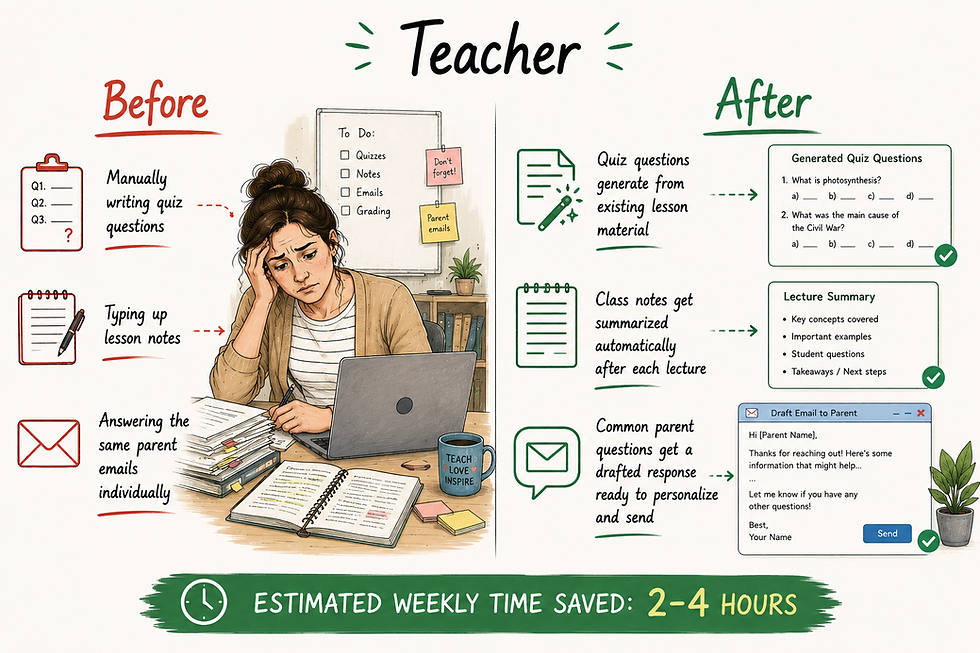
Before: Manually writing quiz questions, typing up lesson notes, and answering the same parent emails individually.
After: Quiz questions generate from existing lesson material, class notes get summarized automatically after each lecture, and common parent questions get a drafted response ready to personalize and send.
Estimated weekly time saved: 2–4 hours.
College student
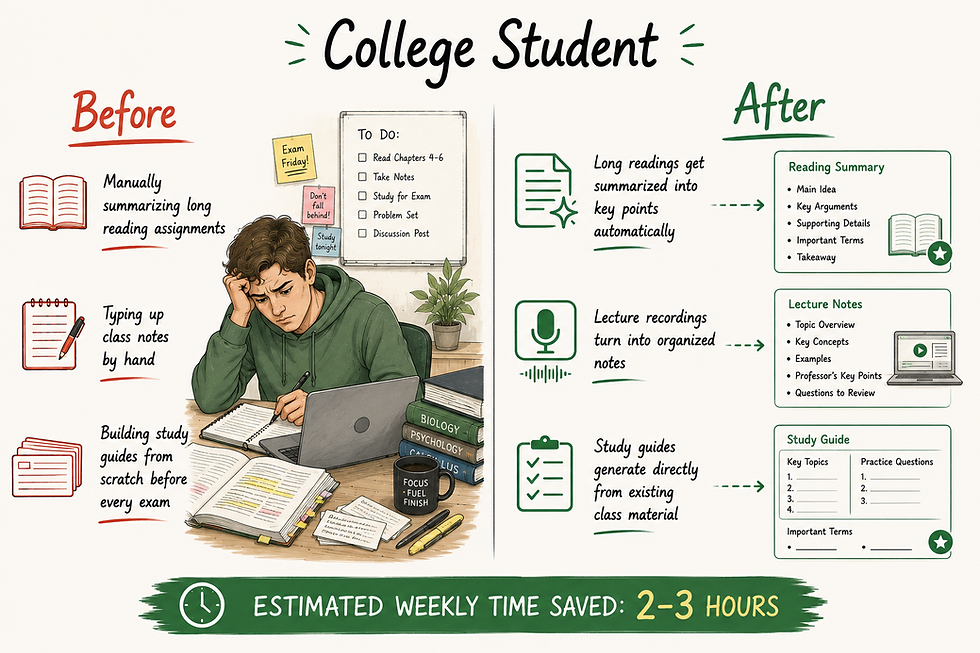
Before: Manually summarizing long reading assignments, typing up class notes by hand, and building study guides from scratch before every exam.
After: Long readings get summarized into key points automatically, lecture recordings turn into organized notes, and study guides generate directly from existing class material.
Estimated weekly time saved: 2–3 hours.
7. Common Mistakes
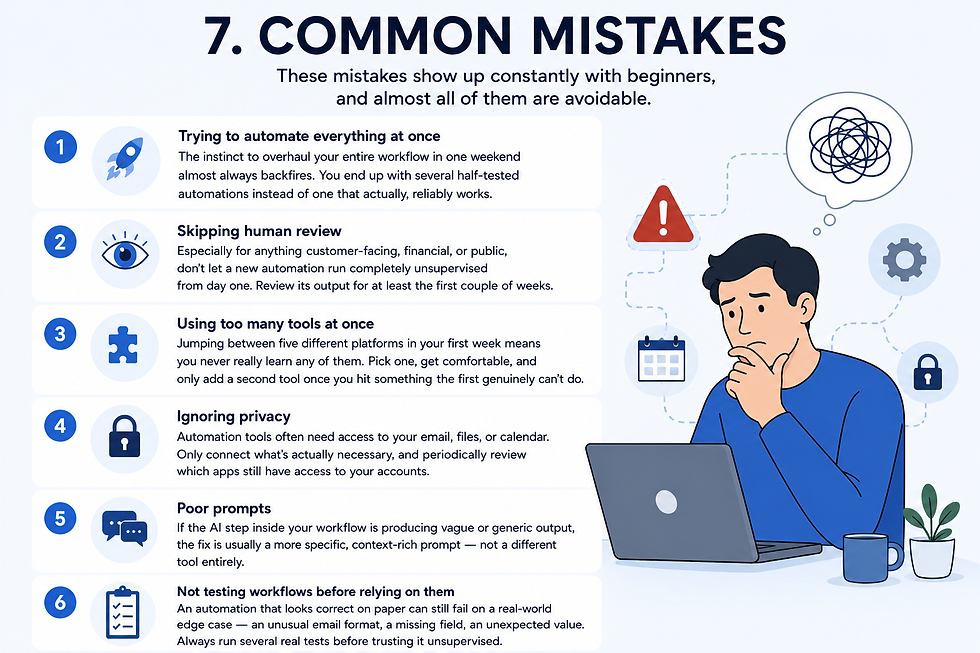
These mistakes show up constantly with beginners, and almost all of them are avoidable.
Trying to automate everything at once The instinct to overhaul your entire workflow in one weekend almost always backfires. You end up with several half-tested automations instead of one that actually, reliably works.
Skipping human review Especially for anything customer-facing, financial, or public, don't let a new automation run completely unsupervised from day one. Review its output for at least the first couple of weeks.
Using too many tools at once Jumping between five different platforms in your first week means you never really learn any of them. Pick one, get comfortable, and only add a second tool once you hit something the first genuinely can't do.
Ignoring privacy Automation tools often need access to your email, files, or calendar. Only connect what's actually necessary, and periodically review which apps still have access to your accounts.
Poor prompts If the AI step inside your workflow is producing vague or generic output, the fix is usually a more specific, context-rich prompt — not a different tool entirely.
Not testing workflows before relying on them An automation that looks correct on paper can still fail on a real-world edge case — an unusual email format, a missing field, an unexpected value. Always run several real tests before trusting it unsupervised.
Common Mistake Callout: The single most common beginner failure isn't a bad tool choice — it's automating a messy, poorly defined process. If a task is confusing or inconsistent when you do it manually, automating it just makes the mess move faster. Clean up the process first.
8. Security and Privacy

This section matters more than most beginner guides give it credit for, so let's be direct about it.
Sensitive data

Be deliberate about what you feed into AI tools and automations — especially anything involving customer information, financial details, health data, or anything covered by a confidentiality agreement. Once information is pasted into a tool or connected through an integration, you're relying on that provider's data handling practices, not just your own judgment.
Permissions

Automation platforms typically ask for broad account access ("read and send email," "access all files") even when your workflow only needs a narrow slice of that. Where possible, use the most limited permission scope available, and review connected apps periodically to remove ones you're no longer using.
Business use
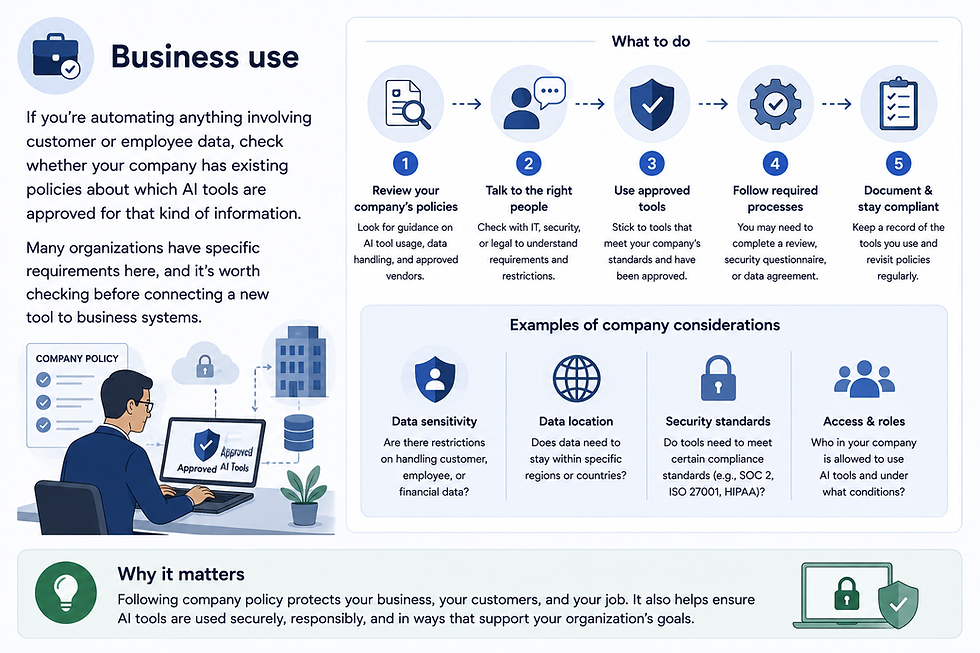
If you're automating anything involving customer or employee data, check whether your company has existing policies about which AI tools are approved for that kind of information. Many organizations have specific requirements here, and it's worth checking before connecting a new tool to business systems.
Cloud storage
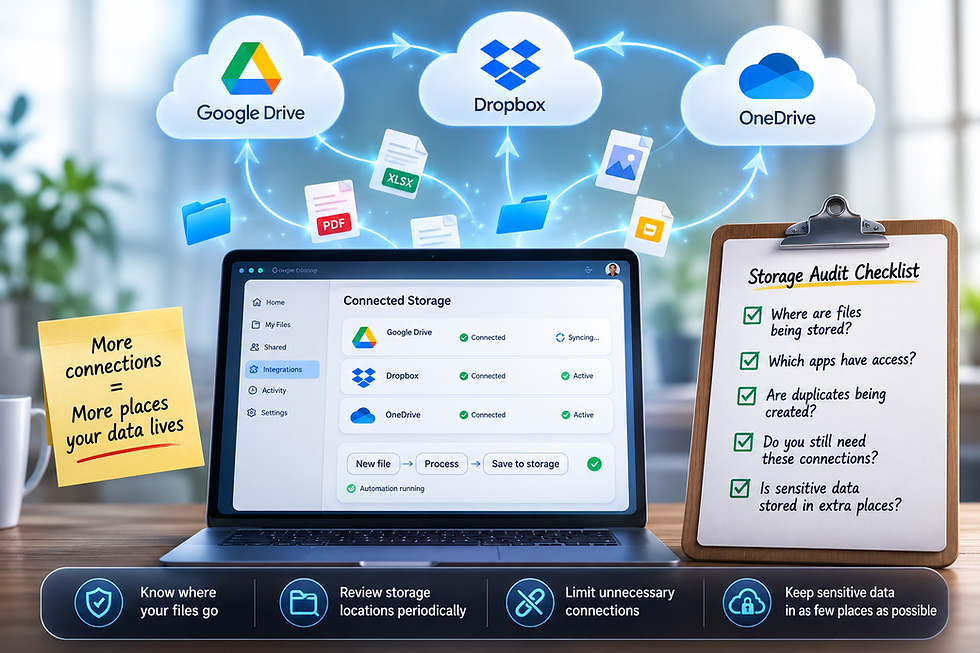
Automations that move files between cloud storage services (Google Drive, Dropbox, OneDrive) are convenient, but they also multiply the number of places sensitive information lives. Periodically audit where your automations are actually storing data.
When not to automate

Some tasks are better left manual, at least for now — anything involving a high-stakes judgment call, anything legally sensitive, and anything where a mistake would be difficult or costly to reverse. A drafted customer email with a human reviewing before sending is reasonable. An AI system automatically approving refunds without any oversight is a much bigger risk.
Pro Tip: A simple rule of thumb: automate the drafting and organizing, keep a human in the loop for anything that sends, spends, or commits to something on your behalf — at least until you've built real confidence in the workflow.
9. Best Practices
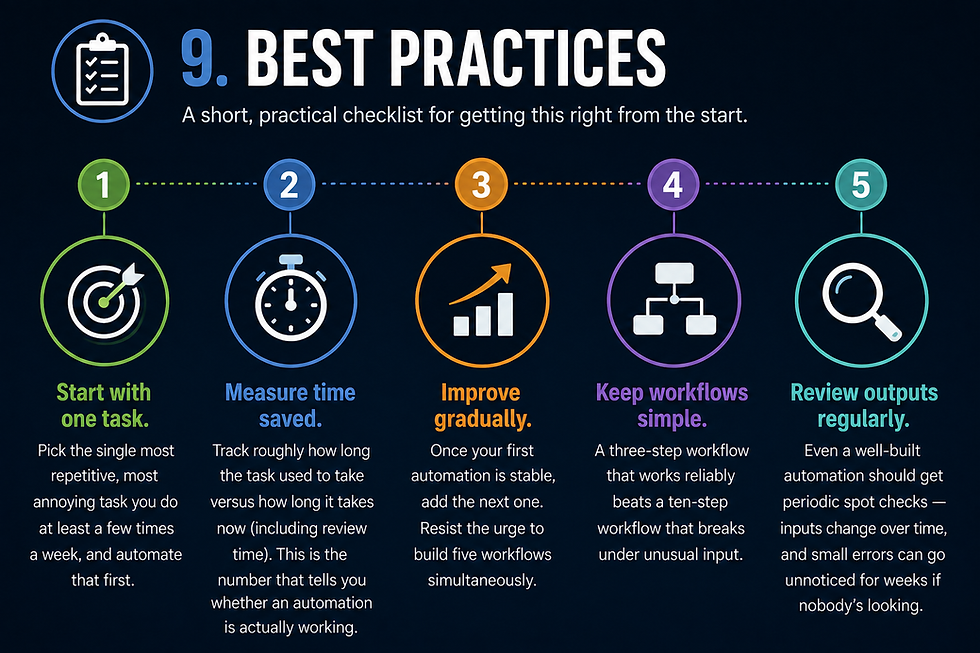
A short, practical checklist for getting this right from the start.
Start with one task. Pick the single most repetitive, most annoying task you do at least a few times a week, and automate that first.
Measure time saved. Track roughly how long the task used to take versus how long it takes now (including review time). This is the number that tells you whether an automation is actually working.
Improve gradually. Once your first automation is stable, add the next one. Resist the urge to build five workflows simultaneously.
Keep workflows simple. A three-step workflow that works reliably beats a ten-step workflow that breaks under unusual input.
Review outputs regularly. Even a well-built automation should get periodic spot checks — inputs change over time, and small errors can go unnoticed for weeks if nobody's looking.
10. Frequently Asked Questions

What is AI automation? AI automation combines artificial intelligence with automated workflows to complete tasks with little or no ongoing human input. Unlike traditional automation, it can interpret unstructured information — like a messy email or a scanned document — rather than only reacting to fixed, exact triggers, which makes it far better suited to real-world, inconsistent input.
Do I need coding skills to automate tasks with AI? No. Tools like Zapier, Make, ChatGPT, and Claude are all built for non-technical users, using drag-and-drop builders or plain-language chat interfaces. Coding knowledge can unlock more advanced customization, but it isn't required to build genuinely useful automations.
Can ChatGPT automate work? ChatGPT is strong at the "thinking" side of automation — drafting, summarizing, and brainstorming — but it isn't a full automation platform on its own. Paired with a tool like Zapier or Make, it can become part of a fully automated workflow rather than something you trigger manually each time.
Can AI automate Excel or spreadsheet work? Yes. AI tools can help write formulas, clean up messy data, summarize trends in plain English, and, when paired with an automation platform, move data between spreadsheets automatically without manual copying and pasting.
Can AI automate emails? Yes, this is one of the most common and effective use cases. AI can draft replies, sort incoming messages by topic or urgency, and flag anything that needs a human decision, dramatically cutting down on inbox management time.
Is AI automation free? Many tools offer a genuinely usable free tier — ChatGPT, Claude, Zapier, and Make all have free plans suitable for light personal or small-scale use. Costs typically become meaningful only once you're running automation at higher volume or business scale.
What is the easiest AI automation tool for beginners? Zapier is often the most approachable starting point because of its guided, step-by-step builder. For pure writing and thinking tasks without any workflow-building, ChatGPT or Claude are the simplest entry points.
Can small businesses use AI automation? Yes, and many already do, particularly for customer support, invoice generation, appointment scheduling, and marketing content — often without needing to hire additional staff.
What jobs benefit most from AI automation? Roles with a high volume of repetitive written or administrative work benefit most — customer support, marketing, sales operations, HR, teaching, and small business ownership are all common, high-impact use cases.
How much time does AI automation save? It varies significantly by task and volume, but for common tasks like email drafting, meeting notes, and research summarization, users frequently report saving several hours per week once a workflow is stable and well-tuned.
What are the risks of AI automation? The main risks are over-trusting AI output without review (especially for anything customer-facing or financial), granting automation tools broader account access than necessary, and automating an already-inefficient process instead of fixing it first.
What is the difference between AI and automation? Automation is a computer repeating a task without manual effort each time; AI is software that can understand and generate information the way a person might. AI automation combines the two, allowing a system to run on its own while also interpreting messy, real-world input along the way.
Final Thoughts

None of this requires becoming a technical person. It requires picking one repetitive task — the one that quietly annoys you every single week — and giving yourself fifteen minutes to build a simple version of an automation for it.
The businesses and individuals getting real value out of AI automation aren't running the most complex systems. They're the ones who started small, tested carefully, kept a human in the loop where it mattered, and added one workflow at a time until the repetitive parts of their week quietly disappeared.
Pick your task. Start today. Everything else in this guide is here for when you're ready for the next one.



Comments